How do I turn off the legacy web app for my account?
An Account Admin can turn off the legacy web app (trac.bluerithm.com) for everyone in your account, so your whole team works in the new Bluerithm (app.bluerithm.com). Nobody in your account can turn it back on afterwards: only our support team can.
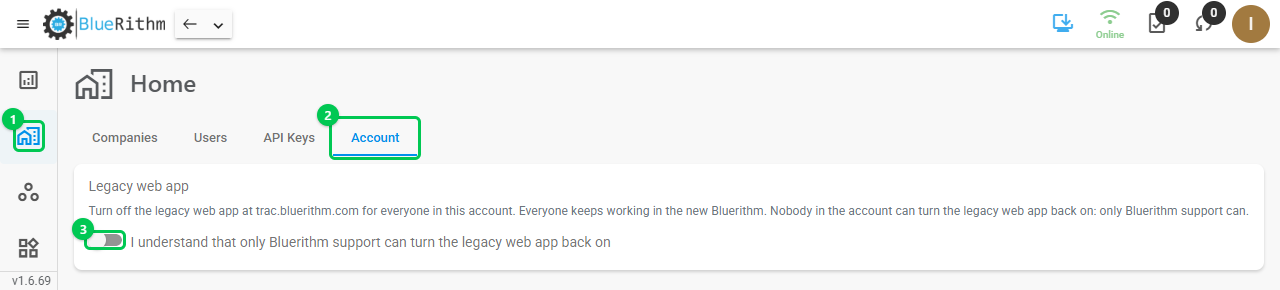
- In the new Bluerithm, click Home in the left menu (1), then the Account tab (2).
- Under Legacy web app, switch on I understand that only Bluerithm support can turn the legacy web app back on (3).
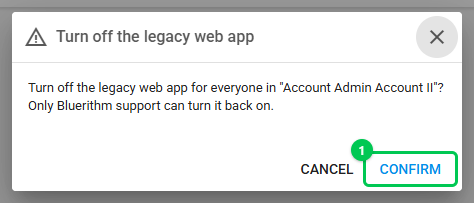
- Click Turn off the legacy web app (1).

- Check the account name in the message, then click Confirm (1).
The Account tab then shows the date the legacy web app was turned off. Account Admins and Users see it there: "The legacy web app was turned off for this account on [date]. You can't turn it back on, but Bluerithm support can if needed."
What happens next:
- Anyone in your account who signs in to the legacy web app is told it has been turned off and is pointed to the new Bluerithm. Anyone already signed in there is signed out the next time they open a page.
- Everything else keeps working: the new Bluerithm on the web, on mobile and offline, AI tool connections, API keys, and emails such as notifications and scheduled reports.
- Someone who also belongs to another account that still uses the legacy web app can still sign in there to that account.
- To turn the legacy web app back on, contact our support team.
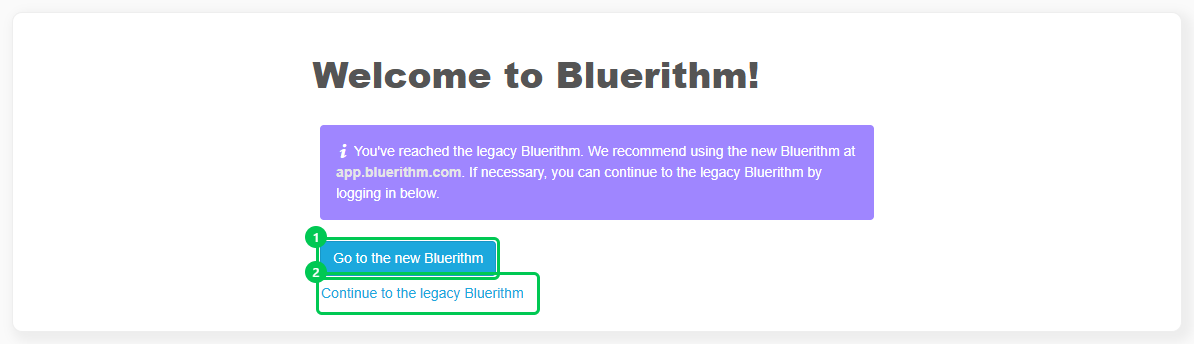
For everyone, whether or not your account has turned it off, the legacy web app's sign-in page now recommends the new Bluerithm. Go to the new Bluerithm (1) opens the new Bluerithm; Continue to the legacy Bluerithm (2) shows the sign-in fields.