
What files can I give the Bluerithm agent?
You can attach files of any type to a message to the Bluerithm agent: PDF drawings and specifications, Excel and CSV files, Word documents, images and ZIP files.
How to attach files
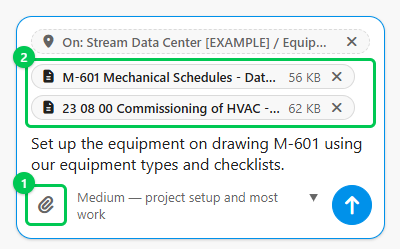
- Click the paperclip (Attach files, 1) under the message box, drag files onto the panel, or paste them.
- Each file shows as a chip (2) while it uploads. If you press Enter before the upload finishes, the message sends when it does.
- If a file fails to upload, the message is not sent. Remove the failed file from its chip, then send again.
Limits
- Up to 1 GB per file.
- Up to 10 files per message.
- Up to 50 files per conversation. To make room, delete files you no longer need (below).
How the agent reads them
The agent reads your documents completely: every page of a PDF, including drawings, and every row of a spreadsheet. ZIP files are opened and their contents read. Large documents take longer and use more AI credits, so attach what the task needs.
Where your files are kept
- Files stay with the conversation and are deleted automatically 30 days after upload.
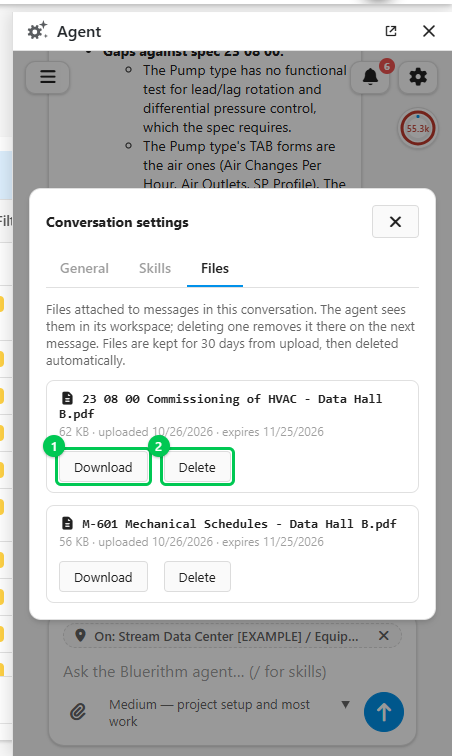
- To see them, open the conversation, click the gear (Conversation settings) at the top right of the panel and choose Files. Each file shows its size, when it was uploaded and when it expires, with Download (1) and Delete (2).
- Files the agent creates for you, such as a summary or an export, appear as download links in its reply and in the same Files list, marked as created by the agent.
Files you attach to a conversation are not added to your project. To keep documents and photos with the project, add them to the project's Files.