
How do I set up my own notification rules?
Your own notification rules tell only you, for example when an issue changes to Awaiting Verification or when all of an AHU's checklists are complete. Nobody else on the project sees them.
Add your own rule
- Open the project, click Settings in the left menu, then the Workflow tab.
- Under My notification rules, click Add Rule (1).
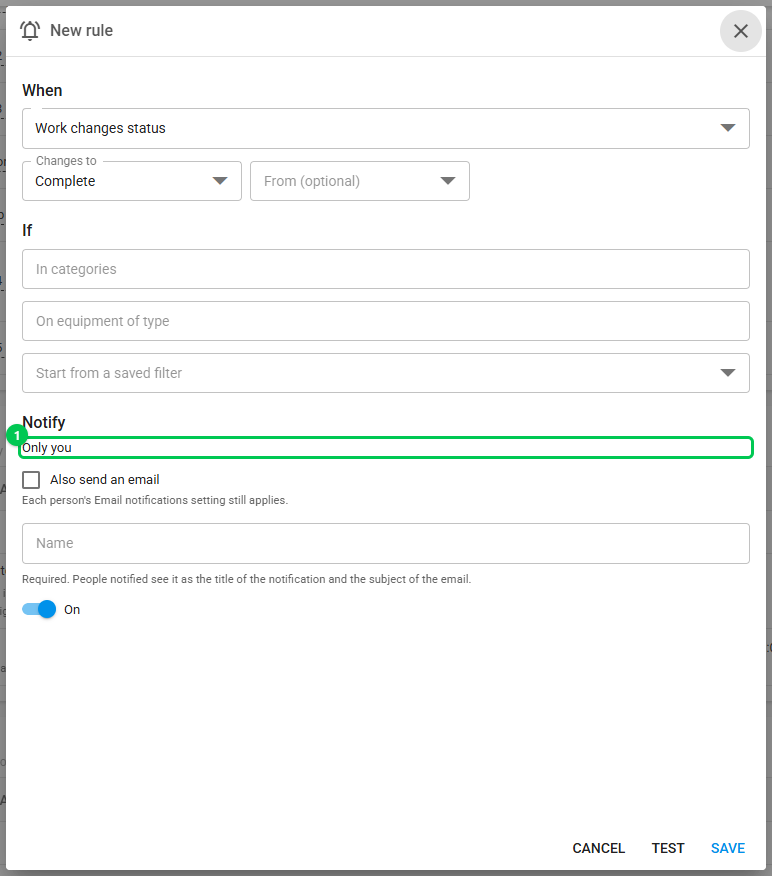
- Choose When and, if you want to narrow it, If, the same way as for a project's rules. Notify is always Only you (1).
- Tick Also send an email if you want an email as well, give the rule a name, then click Save.

Good to know
- Account Admins and Users can add their own rules on projects. Templates don't have them.
- Your rules tell you about changes other people make, never your own, and only about work and issues you can see.
- You see what they tell you under the bell: Where do I see my notifications?
- Rules for everyone on the project, and every choice in the rule window: How do I get notified when work is done or can start?