
Follow Subscriptions for Work and Issues
Follow a work item or issue to get an email when it changes. Updates arrive in the "Updates from your projects" email while Email notifications is on in Settings, and each item in it links straight to that item in Bluerithm.
Follow one item
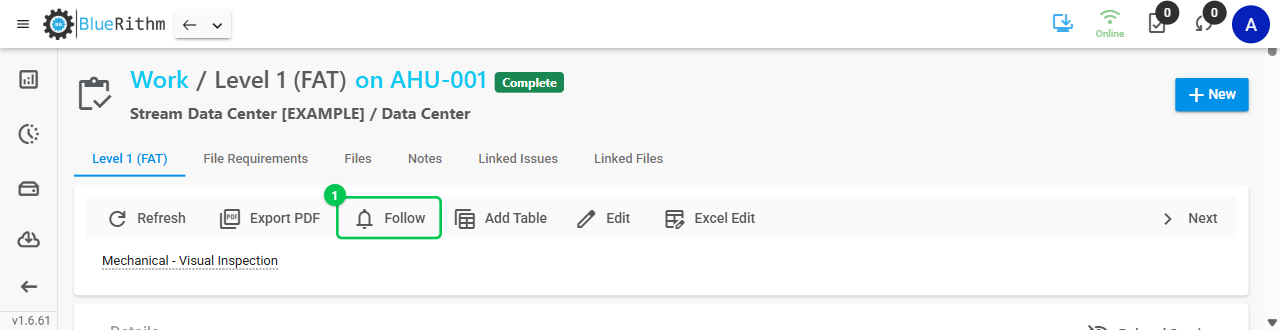
Open the work item or issue and click Follow in its toolbar (1).
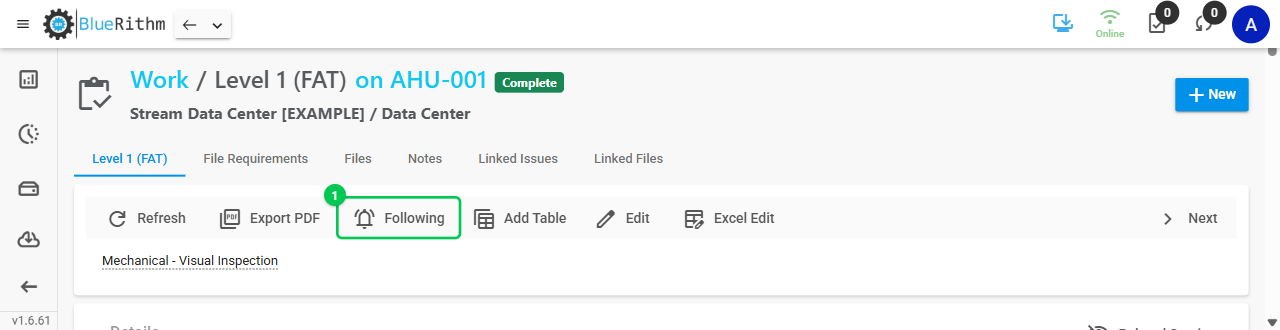
The button changes to Following. Click it again to stop following.
Follow several at once
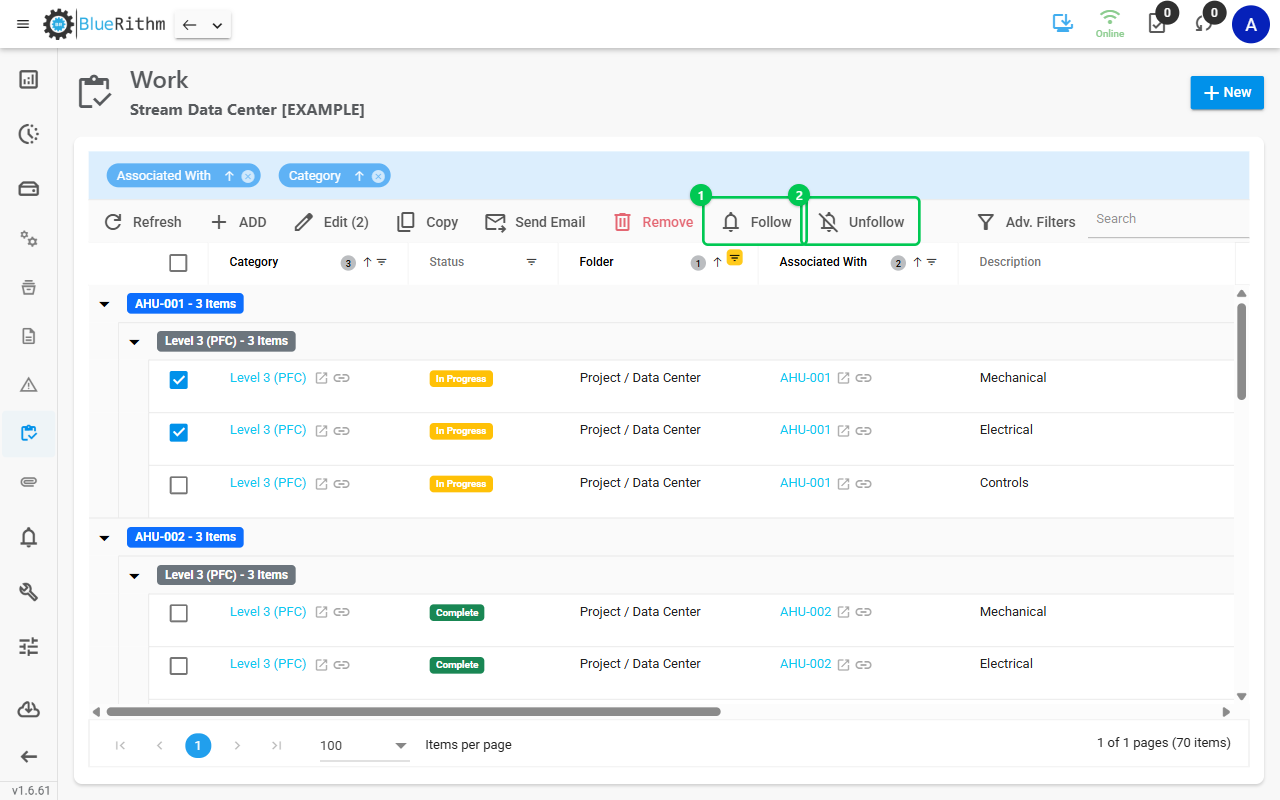
On the Work or Issues page, check the rows you want, then click Follow (1) or Unfollow (2) in the toolbar.
See what you follow and follow automatically
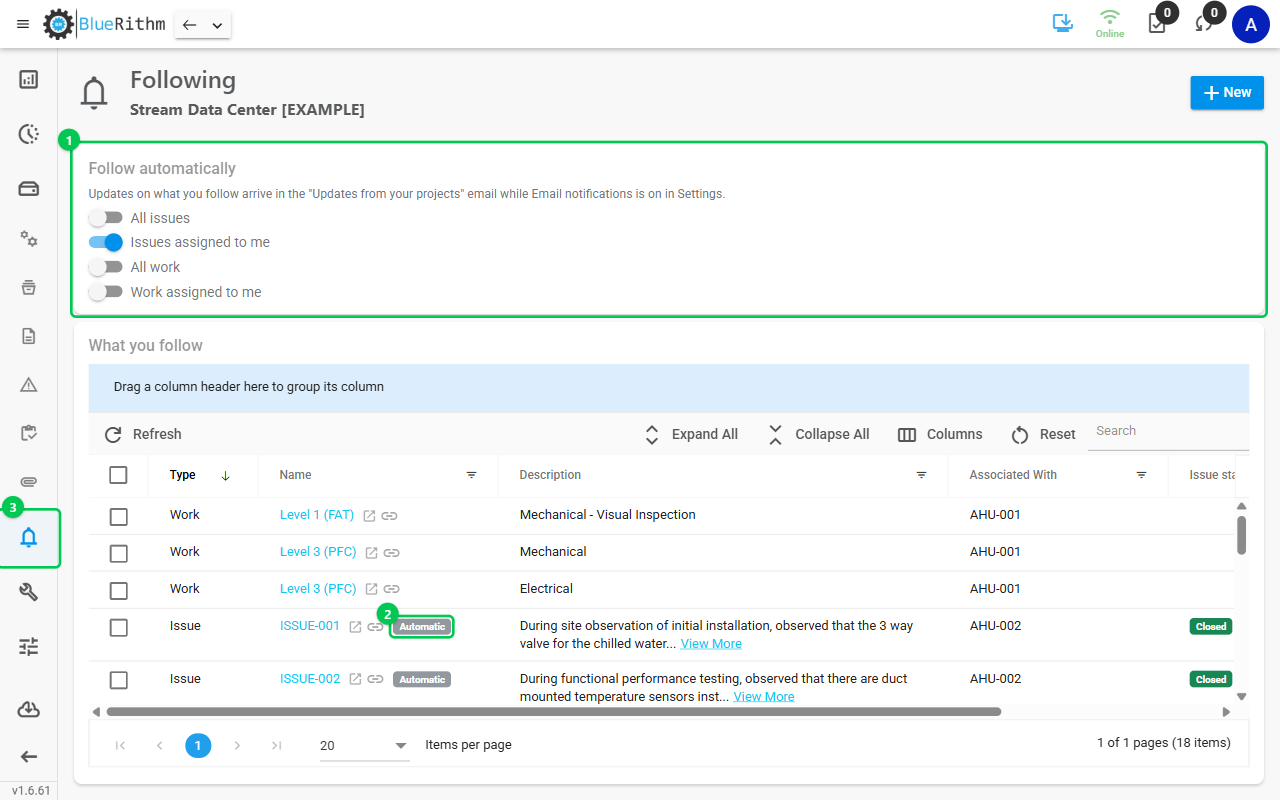
Open Following from the project menu (3). The page lists every work item and issue you follow in the project. Open one from its name, or check rows and click Unfollow.
Under Follow automatically (1), switch on what Bluerithm should follow for you: All issues, Issues assigned to me, All work, or Work assigned to me. Switching one on follows the matching items straight away, and new ones shortly after they're added or assigned to you. Items a setting follows carry an Automatic badge (2). Guests see the "assigned to me" settings.
Stop following
- An item you followed yourself: click Following on its page, or check it on the Work, Issues or Following page and click Unfollow.
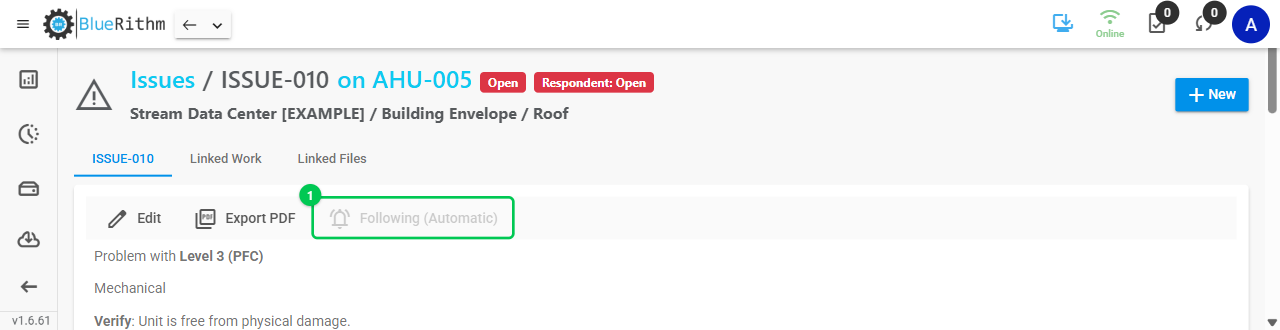
- An item a setting follows shows Following (Automatic) on its page (1). To stop, switch that setting off on the Following page.
Switching a setting off keeps the items it already followed. Unfollow them on the Following page if you no longer want their updates.
Good to know
- Following needs a connection. It isn't available in a project downloaded for offline use.
- Draft issues, and items on template projects, can't be followed.
- AI assistants connected to Bluerithm can list what you follow, and follow or unfollow for you.
In the legacy web app
The older web app (trac.bluerithm.com) still has a Follow checkbox on work and issue details pages and on Issues > Summary, and follow settings under the project's Settings > Follow Settings. There, unchecking a setting removes every follow of that type. Both apps share the same follows: what you follow in one is followed in the other.