
Responding to Issues
When an issue is assigned to you or your company, you are its respondent: you answer it with a response (what you found or fixed, with photos if they help) and set the Respondent Status. The person who entered the issue then checks the work and closes it, or reopens it with a comment.
This article is about the new Bluerithm (app.bluerithm.com). The older web app (trac.bluerithm.com) keeps its own response form.
Add a response
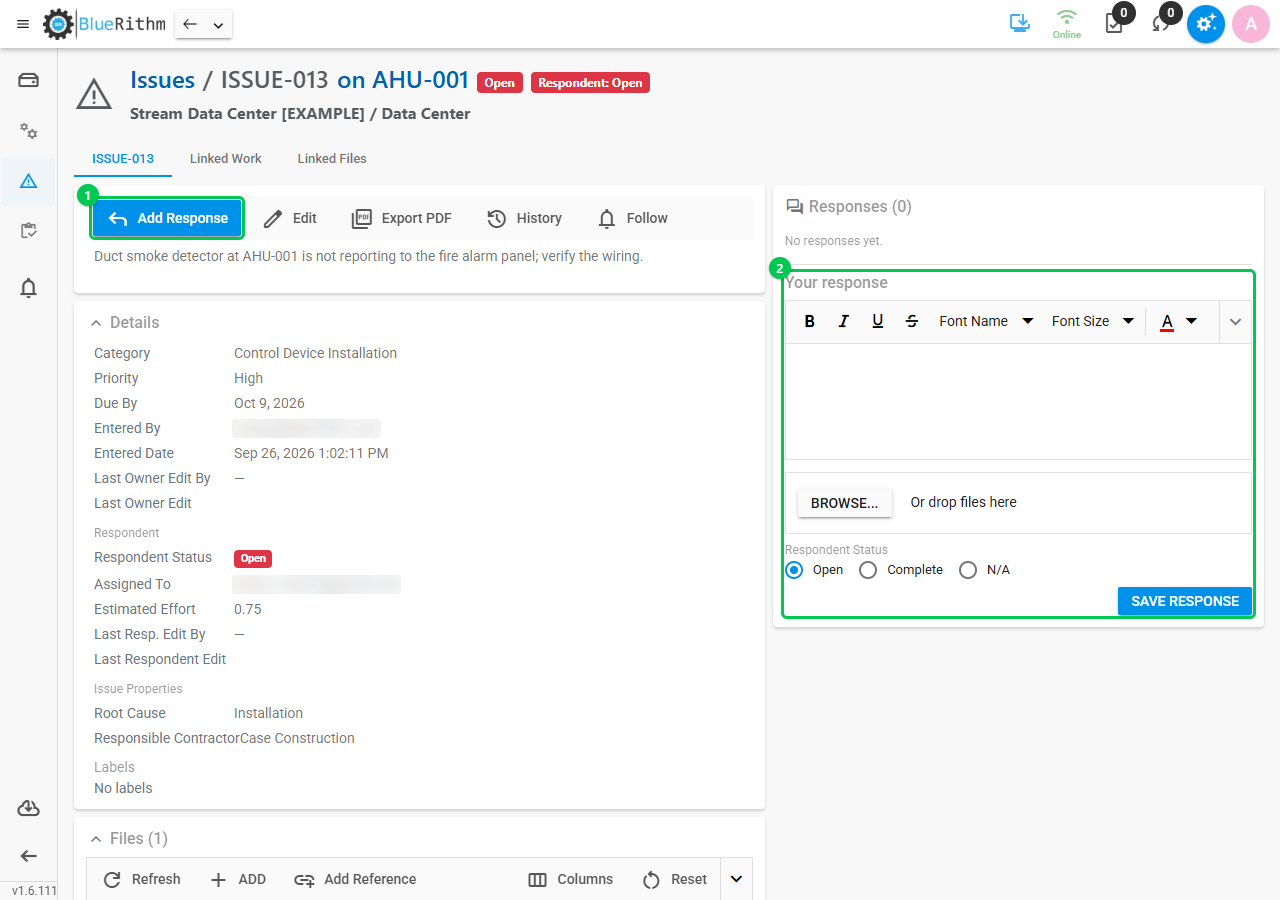
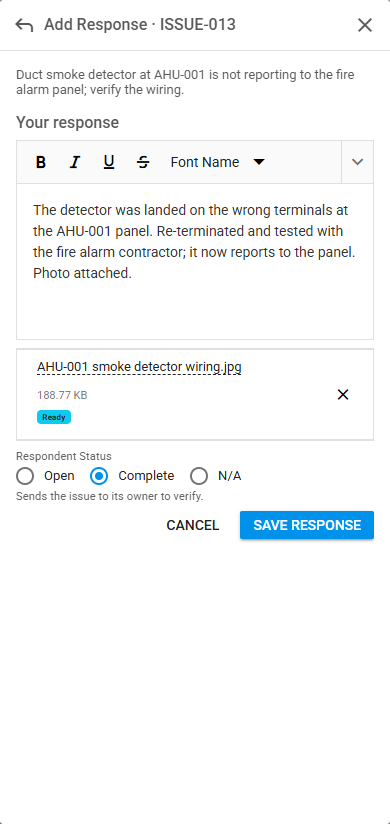
- Open the issue. Add Response is the first button at the top of the page. On a computer it takes you to the reply box under the responses; on a phone it opens a full-screen form.
- Write what you found or did. A response needs some text: photos and files go with it, not on their own.
- Attach photos or files if they help (Browse, or drop them on the box).
- Choose the Respondent Status:
- Complete when the work is done;
- N/A when the issue is not yours to fix;
- Open to add a comment only.
- Complete or N/A sends the issue to its owner to verify: the issue status becomes Awaiting Verification.
- Click Save response.
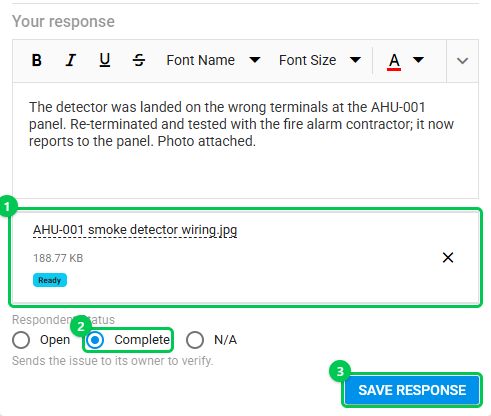
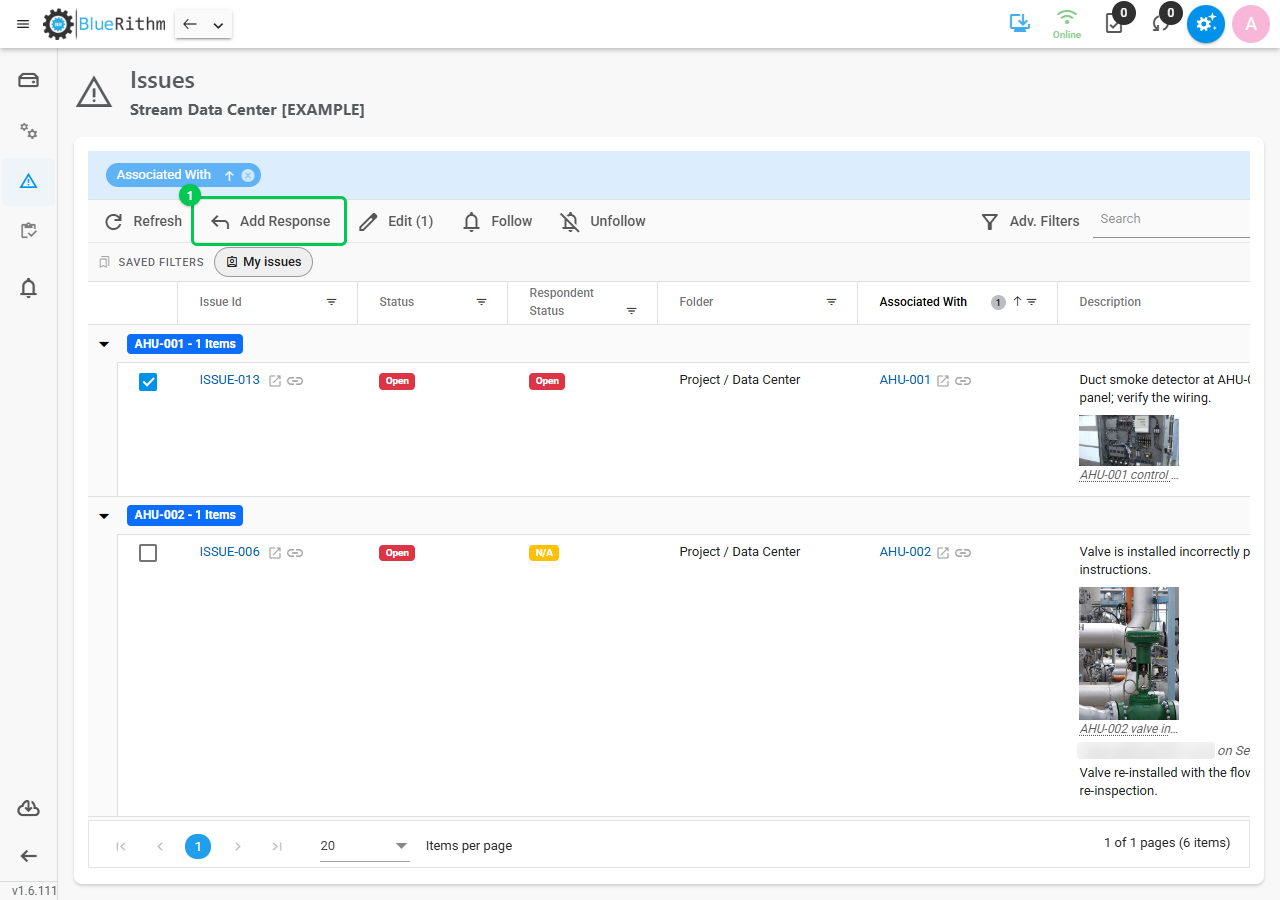
The response, its photos and the status are saved together. You can also respond from the Issues list: select one issue and click Add Response. In a project you have made available offline, a response saved without a connection is sent when you are back online.
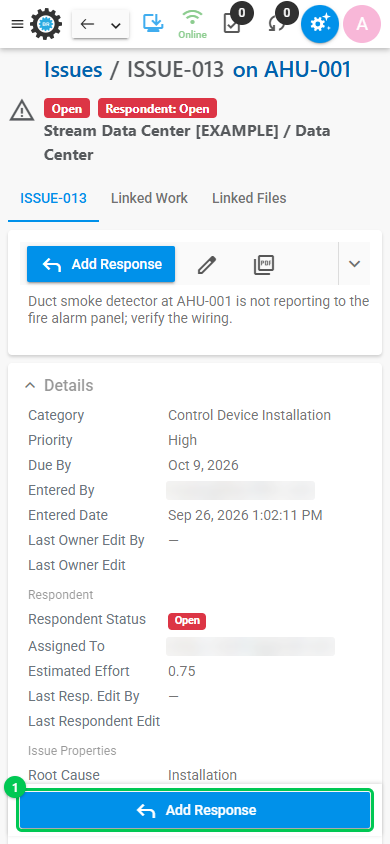
On a phone, Add Response stays at the bottom of the screen and opens the form full screen.
See the responses
Responses appear in the Responses thread beside the issue, oldest first, each with who wrote it, when, and its photos and files. Status changes appear in the thread too, for example "… set Respondent Status to Complete; the issue is awaiting verification". The issue's own photos stay in its Files section.
Verify, close or reopen an issue
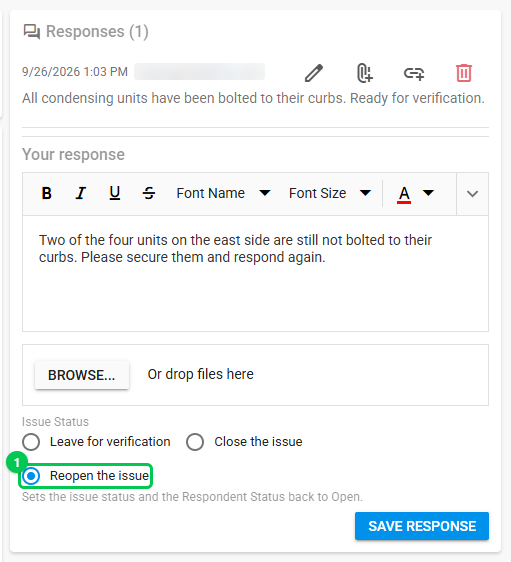
If you entered the issue, or your company owns the project, the reply box offers the issue's status instead of the Respondent Status. Leave it as it is, choose Close the issue, or choose Reopen the issue and say what is still needed. Reopening sets the issue status and the Respondent Status back to Open, so the assignee sees it as open work again.
Privileged Guests who are not assigned to an issue can still add a response; only the assignee sets the Respondent Status. See also Accessing Your Assigned Work and Issues and Sharing Issue and Work Assignments.