
Performance Considerations with the Bluerithm App
If you are experiencing performance issues these practices can help the app run efficiently on most devices.
Clear Data
Once all data is synced, use the clear data option. This will remove any unnecessary local data from projects that aren't being used. Do not do this if the app has any unsynced changes.

App Reload
Use the app reload option. This can be done safely at any time.

Low Memory Mode
This is usually helpful for lower spec mobile devices but can also be helpful if there are many images on your project(s). Related to this, the Show Memory and Storage Monitor option causes the app to display the metrics for these resources on the device, which can help you understand how the app is using resources.

Forced Offline Mode
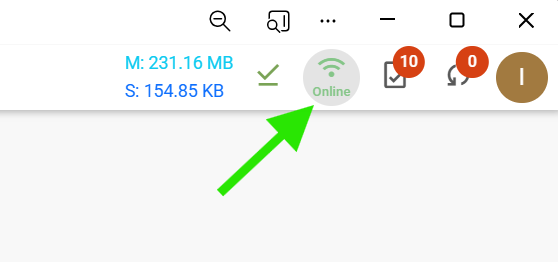
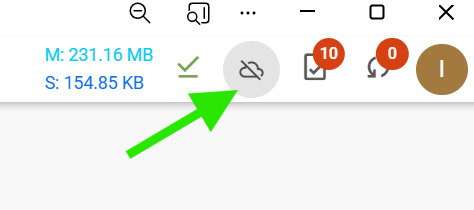
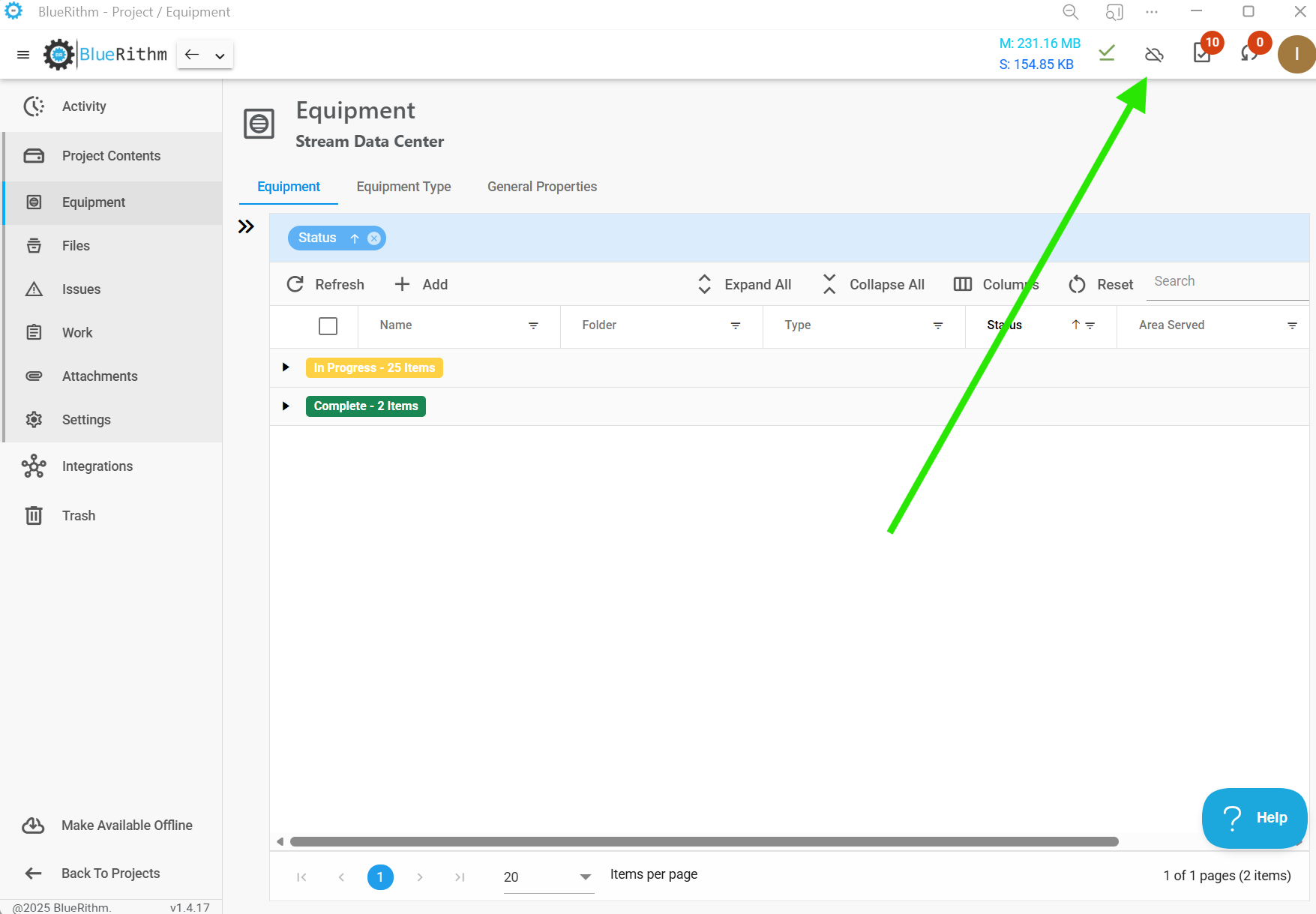
The Bluerithm app can be forced into an offline state without taking a device fully offline (e.g. 'airplane mode' etc.). This can be helpful when there is a weak or sporadic signal but it's not reliable enough to be uploading pictures or quickly navigating around a project, but the signal is strong enough to still send/receive text messages or calls. This will only be useful if a project has been loaded first.
To activate and deactivate offline mode, click the icon shown below.
Remove and Reinstall
Remove and reinstall the app. This is the last resort to troubleshooting a performance problem. Do not do this if the app has any unsynced changes.