
Issue Categories, Priorities, and Custom Issue Properties
Bluerithm lets you customize how issues are tracked on your projects by managing categories, priorities, and custom properties. These features help you organize, filter, and report on issues in ways that match your project's unique needs.
Your defined lists of categories, priorities, and properties can be saved on template projects and easily copied into projects during the project setup process, then customized at the project level if needed.
This allows standardization while still remaining extremely flexible, efficiency in setup and management, and consistency across all projects.
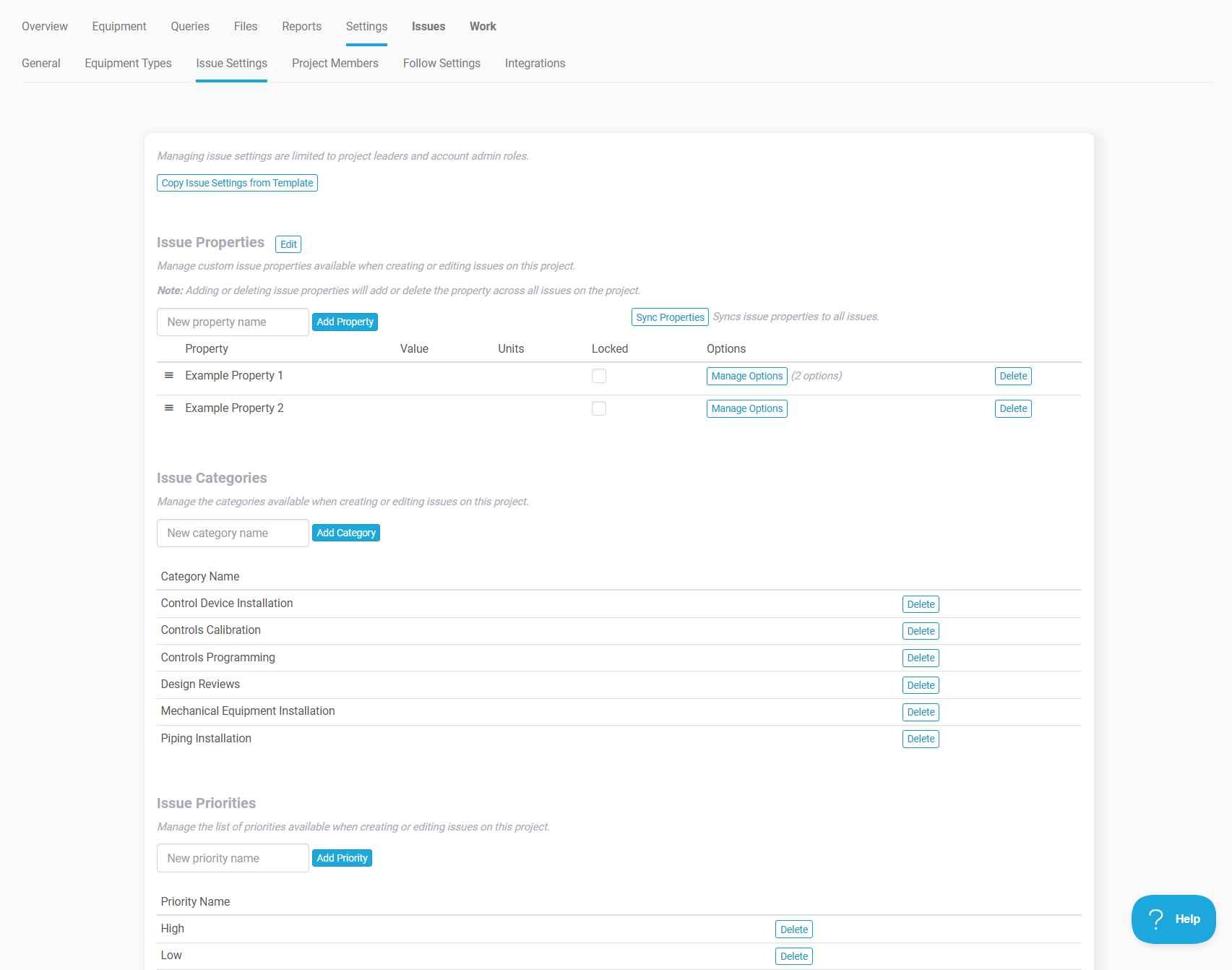
Issue Categories
What are Issue Categories?
Issue categories let you classify issues by type—for example, "Safety," "Quality," "Design," or "RFI." Categories make it easier to organize issues and filter or report on specific types across your project.
Adding Categories
You can add categories in two ways:
While creating or editing an issue:
- Look for the Categories dropdown
- Select an existing category, or click "Add New Category"
- Type the category name and save the issue
- The new category is automatically added to your project's category list
From Project Settings:
- Navigate to Project > Settings
- Scroll to the Issue Categories section
- Enter a category name and click Add Category
- The category is immediately available for use
Deleting Categories
- Go to Project > Settings
- Scroll to the Issue Categories section
- Click the Delete button next to the category you want to remove
- Confirm the deletion
Note: Deleting a category does not delete issues that use it. The category value remains on existing issues but won't be available for new issues.
ACC-Connected Projects
If your project is connected to Autodesk Construction Cloud (ACC), issue categories are read-only in Bluerithm. Categories sync from ACC Issue Types automatically, so you'll need to manage them directly in ACC.
Issue Priorities
What are Issue Priorities?
Issue priorities let you rank the importance or urgency of issues—for example, "Critical," "High," "Medium," "Low," or numbered levels like "1," "2," "3." Priorities help teams focus on what matters most.
Adding Priorities
You can add priorities in two ways:
While creating or editing an issue:
- Look for the Priorities dropdown
- Select an existing priority, or click "Add New Priority"
- Type the priority name and save the issue
- The new priority is automatically added to your project's priority list
From Project Settings:
- Navigate to Project > Settings
- Scroll to the Issue Priorities section
- Enter a priority name and click Add Priority
- The priority is immediately available for use
Deleting Priorities
Go to Project > Settings, scroll to Issue Priorities, click Delete next to the priority, and confirm. Deleting a priority doesn't affect existing issues—the value remains on issues that already use it.
Procore-Connected Projects
If your project is connected to Procore, issue priorities are read-only in Bluerithm. Priorities sync from Procore Observation Priorities automatically, so you'll need to manage them directly in Procore.
Issue Properties
What are Issue Properties?
Issue properties are custom fields you can add to track information beyond the standard issue fields. Examples include "Cost Impact," "ECM Identifier," "Expected Savings," or anything else your unique situation requires. Properties you create apply to all issues on a project.
Adding Properties
- Navigate to Project > Settings
- Scroll to the Issue Properties section
- Enter a property name and click Add Property
- The property is immediately added to all issues on the project
Editing Properties
Click the Edit button in the Issue Properties section. From here you can:
- Change property names
- Set default values
- Define units for numeric properties
- Set the display order
Deleting Properties
Go to Project > Settings, scroll to Issue Properties, click Delete next to the property, and confirm.
Warning: Deleting a property removes it from all issues on the project and permanently deletes the data stored in that property.
Locking Properties
You can lock a property to prevent Guest users from editing its value on individual issues. In the Issue Properties table, check the Locked checkbox for the property. When locked, the property value can only be changed from the Issue Properties Edit page, and the change will apply to all issues.
Syncing and Reordering Properties
If you add a new property or change property definitions, sometimes you'll need use the Sync Properties feature. This can be necessary since sometimes users may have created issues while offline during the time new issue properties were added or removed from a project.
To change the order properties appear, click the Reorder button, drag and drop properties into your desired order, and click Save.
Permissions
Who Can Manage These Features?
The following roles can add, edit, and delete issue categories, priorities, and properties:
- Account Admin
- User role who is also the project lead
Regular Users can view all categories, priorities, and properties, and select from existing options when creating or editing issues. They can see the "Add New" buttons, but they will be disabled.
Guests and Privileged Guests have limited access and cannot manage or add categories, priorities, or properties.
Best Practices
Categories
- Keep it simple: Start with 5–10 broad categories
- Use consistent naming: Establish naming conventions early
- Avoid duplicates: Check existing categories before adding new ones
- Review regularly: Remove unused categories to keep lists manageable
Priorities
Establish clear definitions: Make sure everyone understands what each priority level means
- Pick one format: Choose either numbers (1–5) or text (Critical, High, Medium, Low) and stick with it
- Don't over-complicate: 3–5 priority levels is usually sufficient
- Document criteria: Create guidelines for when to use each priority level
Properties
- Plan before adding: Properties apply to all issues, so think carefully about what's truly needed
- Use clear names: Property names should be self-explanatory
- Set defaults when possible: If most issues will have the same value, set a default to save time
- Lock sparingly: Only lock properties that should never vary by issue
- Clean up unused properties: Remove properties that are no longer needed
Frequently Asked Questions
What happens to my issues if I delete a category or priority?
Existing issues retain their values, but the deleted option will no longer appear in dropdown menus for new or edited issues.
Can I export a list of categories, priorities, and properties?
Yes, this information is included in project-level reports and can be accessed via the API.
Can different projects have different categories and priorities?
Yes! Categories, priorities, and properties are project-specific. Each project maintains its own lists, letting you customize the organization for each project's unique needs.
Can I rename a category or priority after creating it?
Currently, you cannot rename categories or priorities directly.