
Required Files for file requests and approval workflows
You can add Required Files to work items. This feature can be used for various workflows like submittal requests and tracking, equipment / system startup and manufacturer data, and any other file request workflow you may need.
Required Files work with the validation rules on work items, so you can build customized workflows for standalone file requests, or as part of checklist or test form requirements.
Requirements can be added restricting file types, requiring additional review and approval, the ability to reject a file upload, etc.
Tracking for required files is integrated in the rest of your project, so it's easy to find, approve, track, and manage file workflows.


Which file tab to use on a work item
In the new Bluerithm (app.bluerithm.com), a work item has three file tabs, and only one of them answers a file request:
- File Requirements lists the files requested on the work item. Upload a requested file on its row with Upload Required File. This is the upload that satisfies the requirement and goes to review.
- Files holds any other files attached to the work item, such as photos or reference documents. A file added here does not satisfy a requirement, even when it is the requested document.
- Linked Files lists project files, such as PDF drawings, that link to this work item. These are links, not uploads.
If a requested file was added on Files by mistake, upload it again on its File Requirements row so the requirement can be reviewed and completed.
Review required files from the Attachments tab
In the new Bluerithm (app.bluerithm.com), reviewers can approve, reject or replace required-file uploads straight from a project's Attachments tab, without opening each work item.
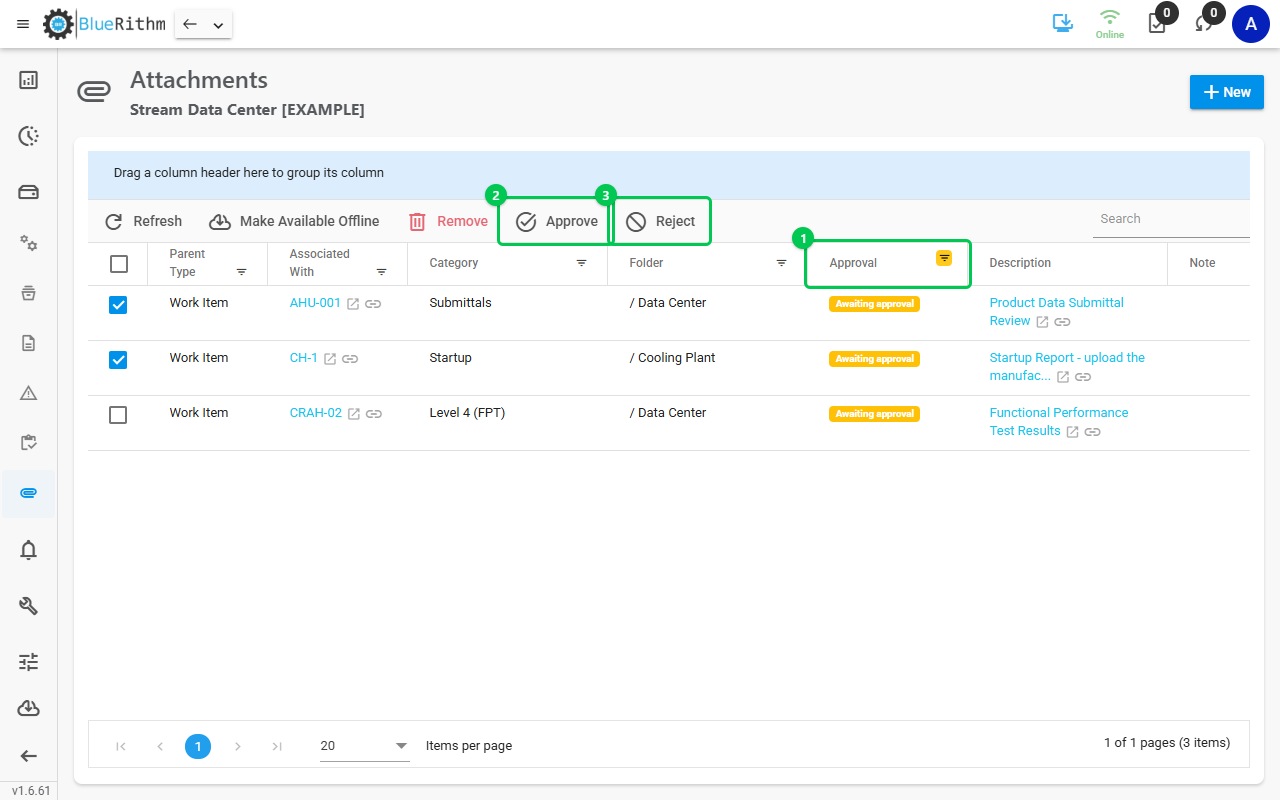
- Open the project and select Attachments (the paperclip icon in the project menu).
- To find uploads waiting for you, filter the Approval column to Awaiting approval. You can keep this view as a saved filter.
- Tick one or more rows. The checkbox in the header selects the rows on the current page.
- Use the toolbar button for what you want to do, then click CONFIRM:
- Approve opens Approve File Requirements. The selected files then read Approved.
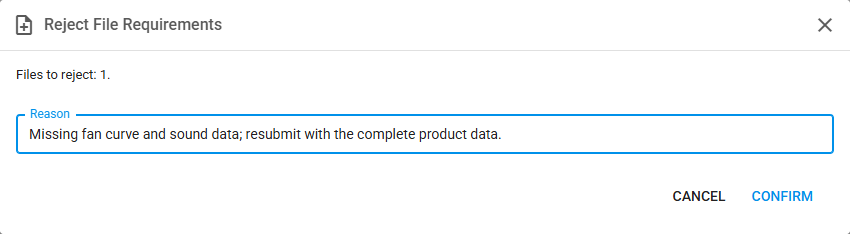
- Reject opens Reject File Requirements. Enter a Reason (required); every selected file gets the same reason, and the work item shows it next to each rejected file. The files then read Rejected.
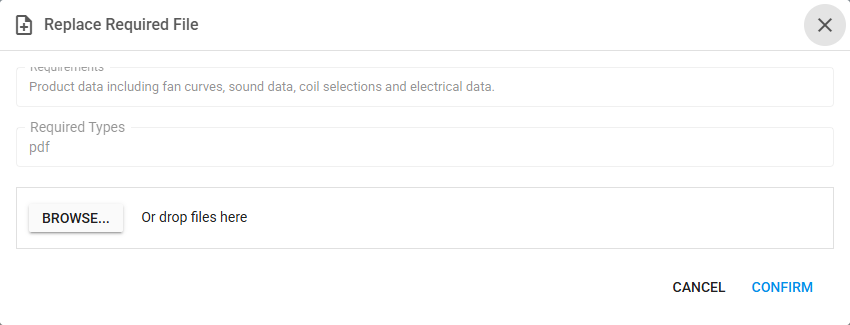
- Replace File opens Replace Required File, which shows the requirement and its Required Types. Choose the new file with BROWSE... or drop it in. It is available when exactly one file is selected, the file is a required file's upload on a work item, and it is not yet approved. The new upload goes back to Awaiting approval (or No approval needed). On narrower windows, Replace File sits in the toolbar's overflow menu (the chevron at the right).
Approve or reject several files at once
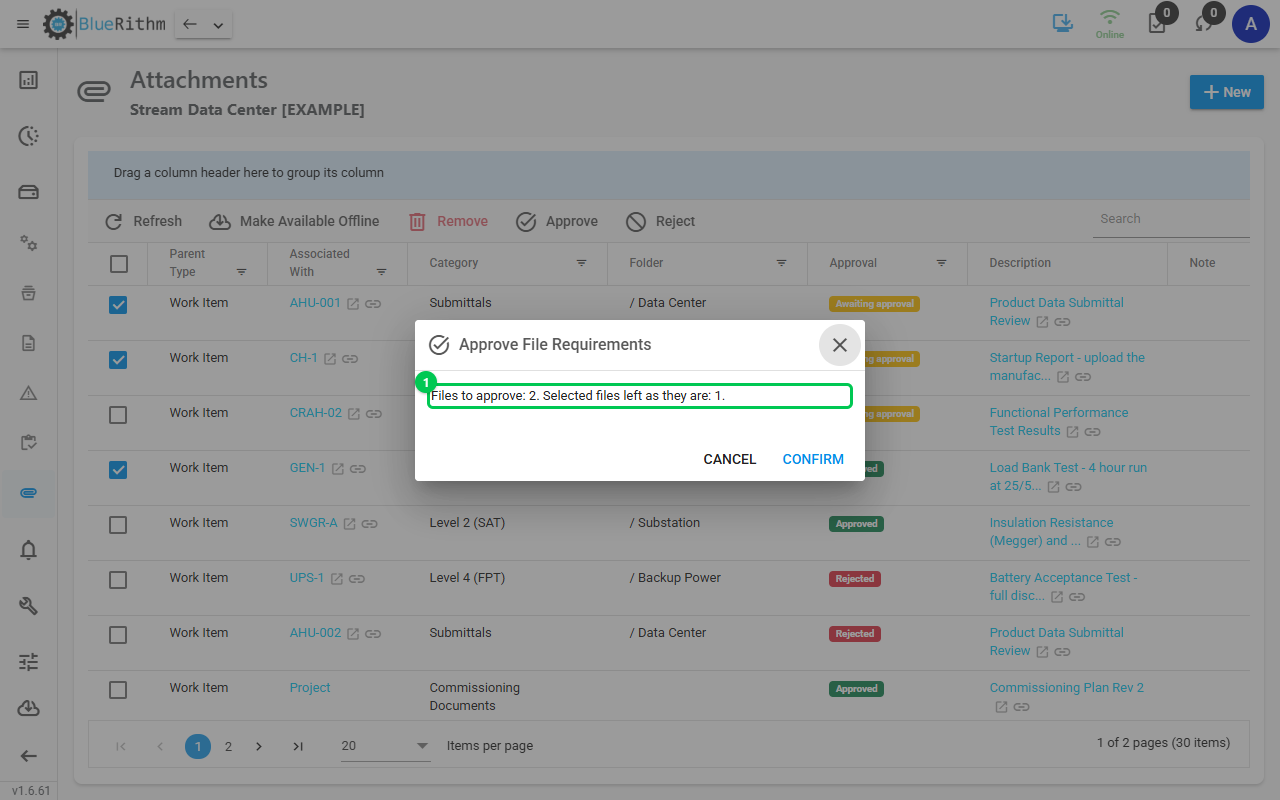
Select as many uploads as you need, including uploads from different work items, and approve or reject them in one action. If the selection includes files that can't take that action (already approved, or not a required file's upload), the confirmation tells you how many files will change and how many are left as they are. Only the eligible files change.
The Approval column
Uploads to a required file show Awaiting approval, Approved, Rejected or No approval needed. The column is empty for files that are not a required file's upload.
What happens to the work item
- An upload waiting for approval moves the work to In Progress.
- Approving the last required file completes the work, the same as approving it on the work item.
- A rejected file keeps the work In Progress. Whoever uploaded the file can resubmit it until it is approved.
- The work item's File Requirements tab shows the same result, and you can still approve, reject or replace there as before.
- Review from Attachments also works in projects made available offline.
Who sees Approve, Reject and Replace File
The same people who can review on the work item.
| Role | Attachments tab | Review buttons |
|---|---|---|
| Account Admin | All rows | Yes |
| User of the company that owns the project | All rows | Yes |
| User of another company on the project | All rows | No |
| Privileged Guest | All rows, with the Approval column | No. They upload and resubmit from the work item (Replace With New File on its File Requirements tab). |
| Guest | No rows | No. They upload and resubmit from the work item. |