Saved Filters
Overview
Use saved filters to keep a grid view you set up often, and bring it back with one click. A saved filter holds the grid's column filters, sort, search, grouping and Adv. Filters selections. Save it for yourself, or share it with the project team so everyone works from the same view.
Saved filters are available on the Equipment, Work, Issues and Attachments grids of a project, and on the Work grid of a project template.
How to use
- Set up the grid the way you want it: column filters, sort, search, grouping and Adv. Filters.
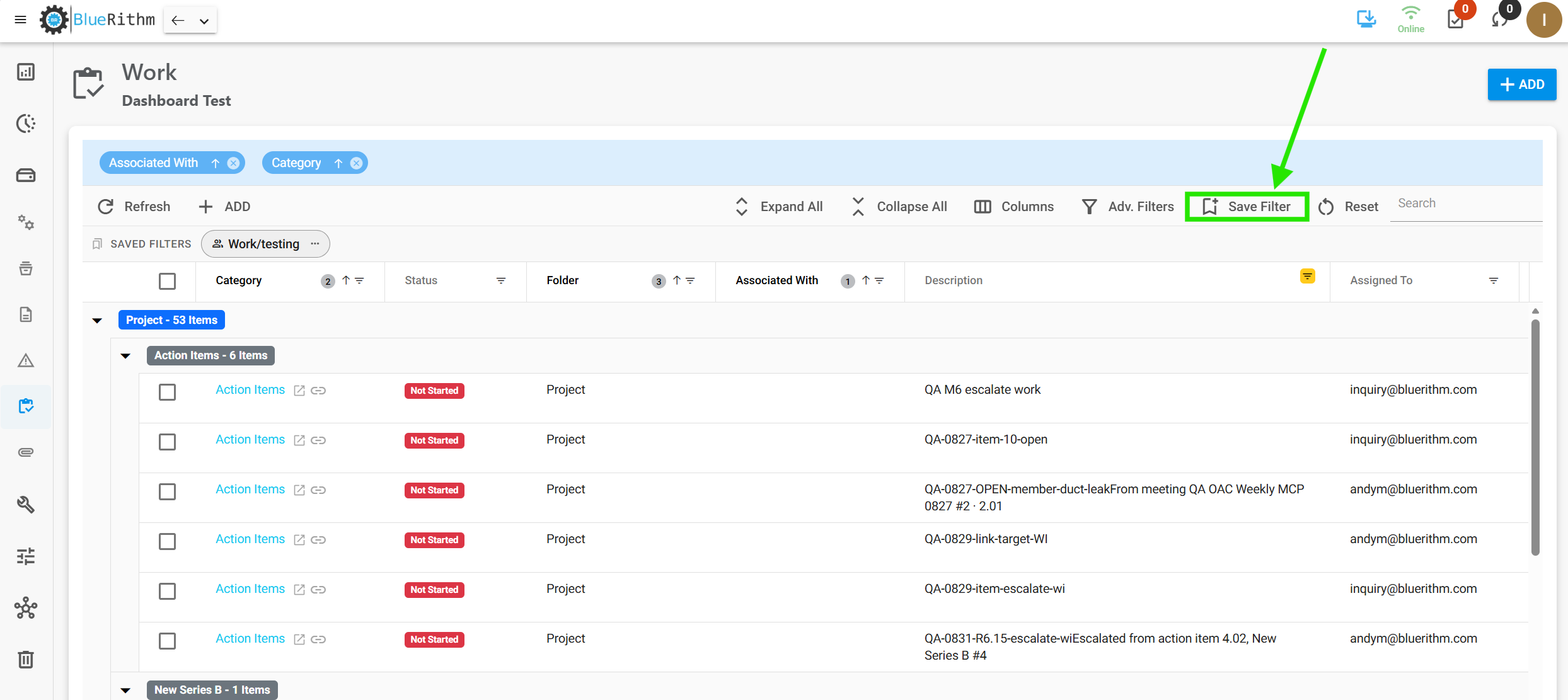
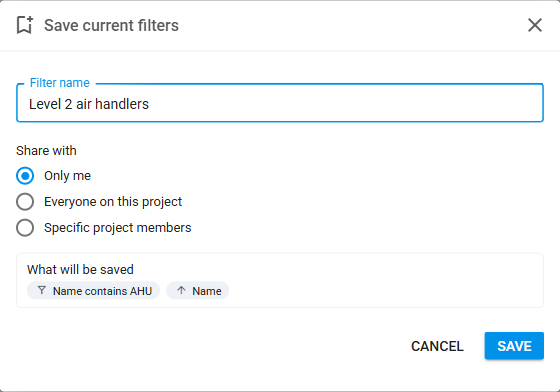
- Click Save Filter in the grid toolbar. Give the filter a name and choose who can use it:
- Only me
- Everyone on this project – anyone who can open the project, including people added later
- Specific project members – pick the people
- What will be saved lists exactly what the filter will hold, so you can check it before saving.
- Saved filters appear as badges under the toolbar. Click a badge to apply it. The badge turns solid amber while the grid matches the saved filter, the same color a column shows when it is filtered. Change anything in the grid and the badge switches to an amber outline, so you can tell you have moved away from the saved view. Click the badge again to return to it or click × to clear it and go back to the grid's default view.

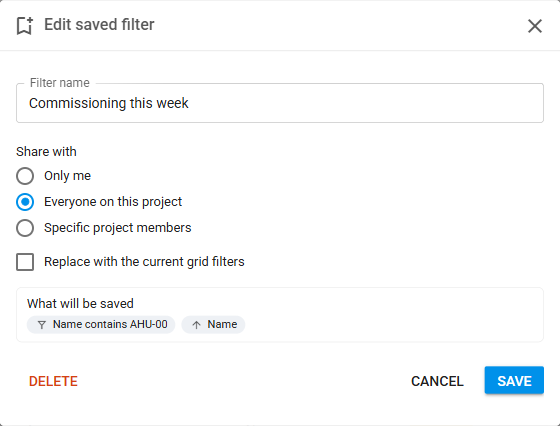
- Use ⋯ on a badge to rename the filter, change who it is shared with, replace it with the current grid filters, or delete it.
Note that a shared filter never shows anyone more than they could already see. Each person who applies it gets the rows they have access to.
Saved filters belong to one project and one grid, and they are available while you are online. Filters that were saved before a project was downloaded will be available to apply in offline mode.
Who can see, edit and delete a saved filter
- Everyone who can open a grid can save filters for their own use, guests included.
- Sharing a filter with the project, or with specific members, is available to Users, Account Admins and System Admins.
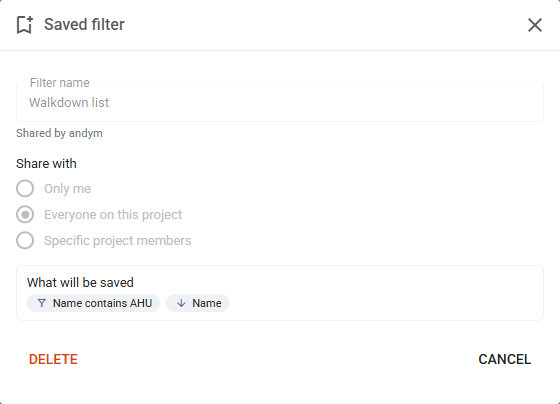
- Only the person who created a filter can rename it, change who it is shared with, or replace its contents. Opening ⋯ on someone else's filter shows the saved view read-only, with who shared it.
- Account Admins and System Admins can delete a filter that has been shared with them. Nobody else can delete another person's filter, and nobody can see another person's private filters.