
My Work
Show only what is assigned to you
On a project's Work page, click My work to see only the work assigned to you. On the Issues page the same button reads My issues. It is the first badge in the Saved filters row, under the grid toolbar, and it is there on every project.

- While it is applied, the badge is amber and the Assigned To column shows the filter, like any column filter. Click × on the badge to go back to the full list.
- It shows every status. To see only what is still open, also filter the Status column; the badge then switches to an amber outline, because the list no longer matches it exactly.
- When your company shares issue and work assignments (see Sharing Issue and Work Assignments), it shows what is assigned to you or to anyone at your company on the project. Hover over the badge to see which applies to you.
- If your company has a very large number of people on the project, it shows only what is assigned to you, with the message "Your company has too many people on this project to list here, so this shows only what is assigned to you."
- In a project downloaded for offline use, it works online and offline.

If you have the Guest role, you already see only the work and issues assigned to you (or to your company, when it shares assignments), so the button changes little for you.
Filter the Assigned To column yourself
You can also filter the Assigned To column yourself, for example to pick other people as well. On a computer, use the filter in the column header:
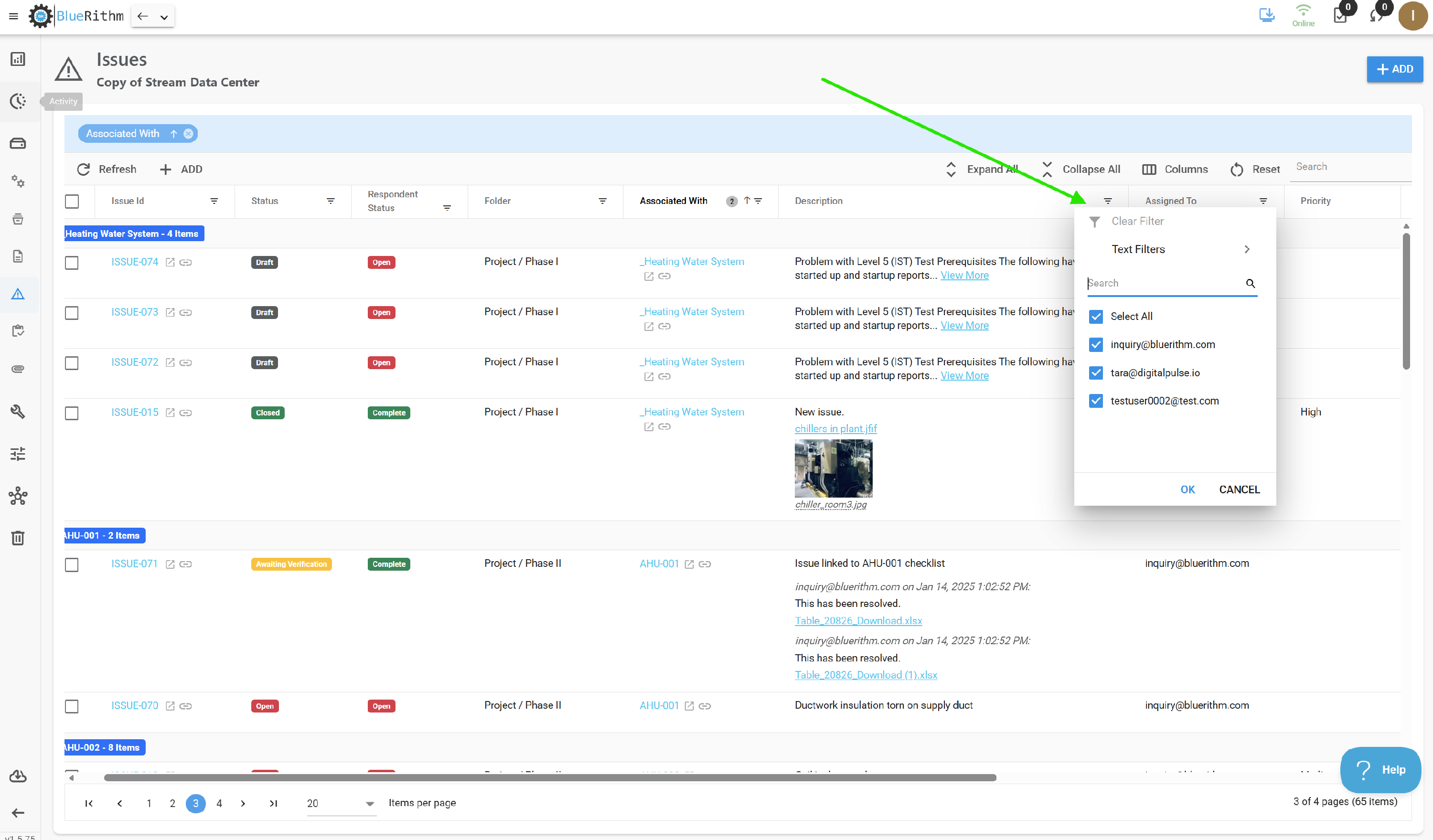
On a phone or tablet, where the list shows cards, tap Filter beside the search box and choose Assigned To. See How do I filter or sort a list on my phone or tablet?

If you're a guest user, you should also check out these articles: