
How do I paste a screenshot or image into a description or note?
In the new Bluerithm (app.bluerithm.com) you can paste a screenshot or image straight into a description or note. The image appears where you pasted it, and Bluerithm stores it as a link, so the text stays small and quick to open.
Images in text are meant for screenshots, such as a controls graphic or an error message. Attach photos from the site to the issue or work as files instead (see Files and File Attachments).
This works in work and issue descriptions, notes, table descriptions, meeting action items and topic notes, and project update emails. Anyone who can edit the text can add images to it.
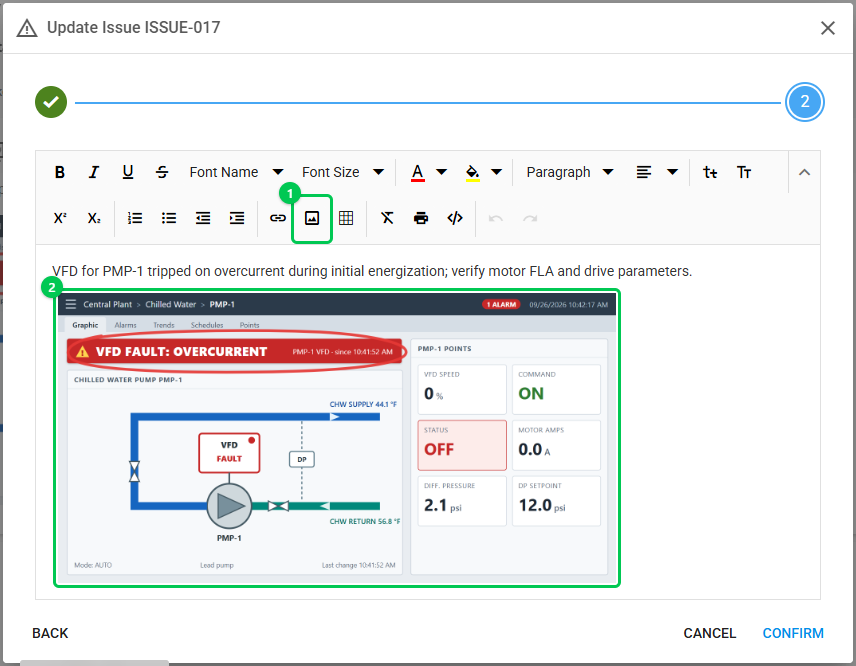
Add an image
- Open the text you want to change. On a work page, click the description. On an issue page, click Edit, then Next to reach the description.
- Paste the image with Ctrl+V (Cmd+V on a Mac), or drag an image file into the text. To pick a file instead, click Insert Image in the editor's toolbar, then Browse, choose the image and click Insert. If you don't see Insert Image, click the arrow at the right end of the toolbar to show more tools. On a phone or tablet, use Insert Image.
- Save as usual: click Confirm in a dialog, or click outside the description on a work page. If an image is still uploading, the save waits for it.
Resize an image
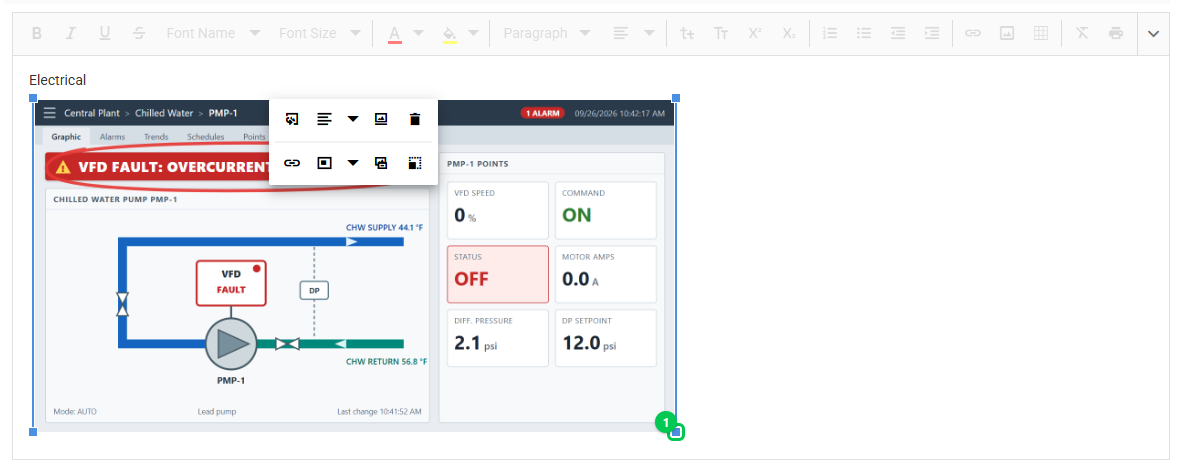
Click the image to select it, then drag a corner handle. Images keep their proportions, and they shrink to fit narrow screens such as phones.
Limits
- PNG, JPEG, GIF and WebP images, up to 10 MB each. Another type shows "This image type can't be added to text. Use a PNG, JPEG, GIF or WebP image, or attach it as a file." A larger image shows "Images in text can be up to 10 MB. Attach larger images as files."
- Adding an image needs a connection. While you're offline, or the app is set to offline mode, the image is not added and you see "Images can be added to text when you're online. You can attach the photo as a file now." Typing text offline works as before.
- On a work page, stay on the page until a large image has finished uploading (it can take a few seconds) before you open another page.
Where the image shows
- Everywhere the text shows: the new Bluerithm on any device, the legacy web app (trac.bluerithm.com), report PDFs, where large images are compressed (see Images in Reports), and project emails.
- Offline too, when you take the project's images offline. See Using the Bluerithm App Offline.
- Like images pasted in the legacy web app, an image in text is stored as a web link: anyone who has the link can open the image without signing in. Attach confidential documents and photos as files instead (see Files and File Attachments).