
Files and File Attachments
General project files
From the Files page, you can select files that you want to have available while offline.
From the Files page of a project, select the files you want to be available when working without an internet connection. Then, click the Make Available Offline button.
The selected files will be downloaded to your device and will use storage capacity on your device.

File attachments
You can also make files attached to issues, work, notes, etc. available while offline.
Images pasted into a description or note are not attachments: they go offline with the project when you choose to take its images offline (see Using the Bluerithm App Offline). To add one, see How do I paste a screenshot or image into a description or note?
From the Attachments page filter and/or search to find the parent items the files are attached to, use single checkboxes or the 'select all' checkbox at the top right to select the files you want to be available offline.
The selected files will be downloaded to your device and will use storage capacity on your device.

Reviewing required files on the Attachments page
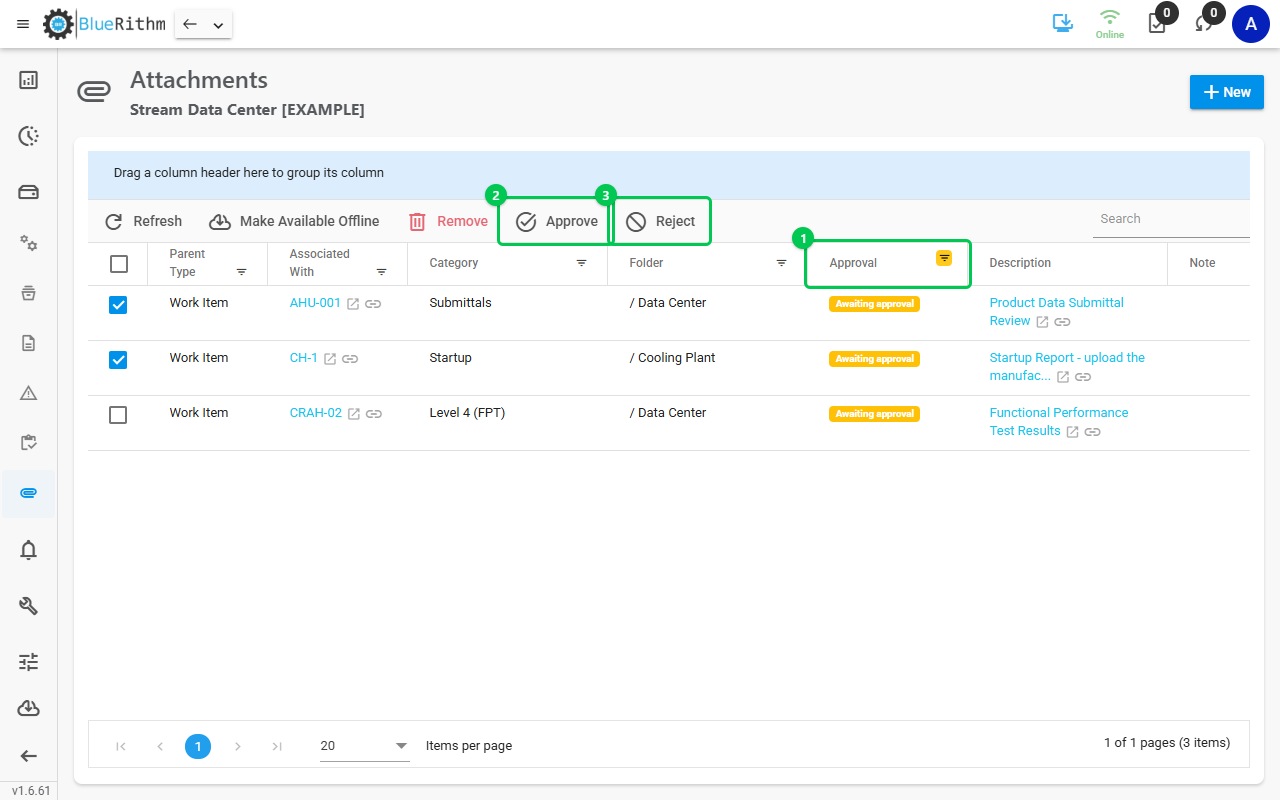
The Attachments page has an Approval column for uploads to required files (Awaiting approval, Approved, Rejected, No approval needed; empty for other files). Filter it to Awaiting approval to find uploads waiting for review.
When you select required-file uploads, reviewers see Approve, Reject and Replace File in the toolbar. The confirmation says how many files will change and how many are left as they are.
For the full workflow and who can review, see Required Files for file requests and approval workflows.