
How do I add a drawing to a project and raise an issue on it?
In the new Bluerithm (app.bluerithm.com) you upload the drawing to the project's Files page, mark it up in the PDF viewer, and raise an issue pinned to the spot on the sheet. The issue joins the project's issue log.
Add the drawing
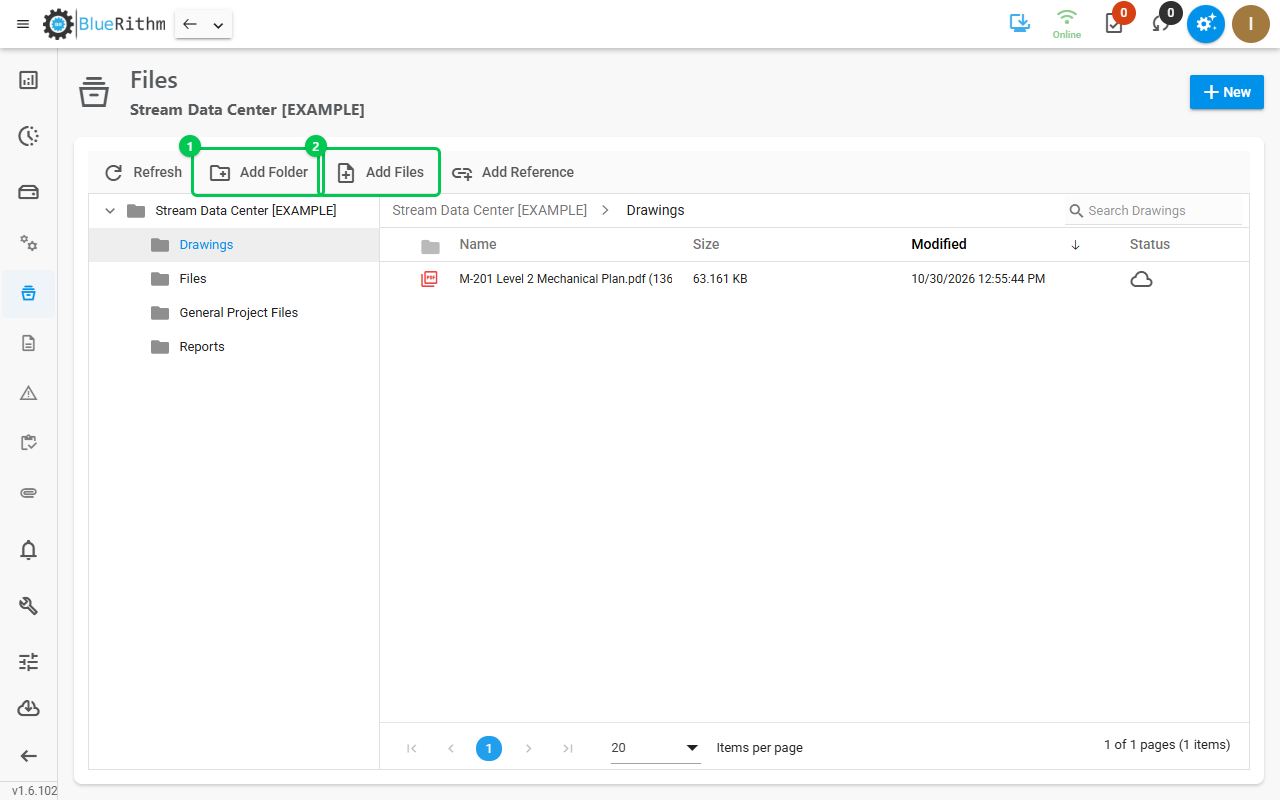
- In the project's menu, click Files.
- Open General Project Files or one of your folders. To make a folder, such as Drawings, click Add Folder.
- Click Add Files, click Browse... or drop the PDF in, and click Confirm.
Mark it up
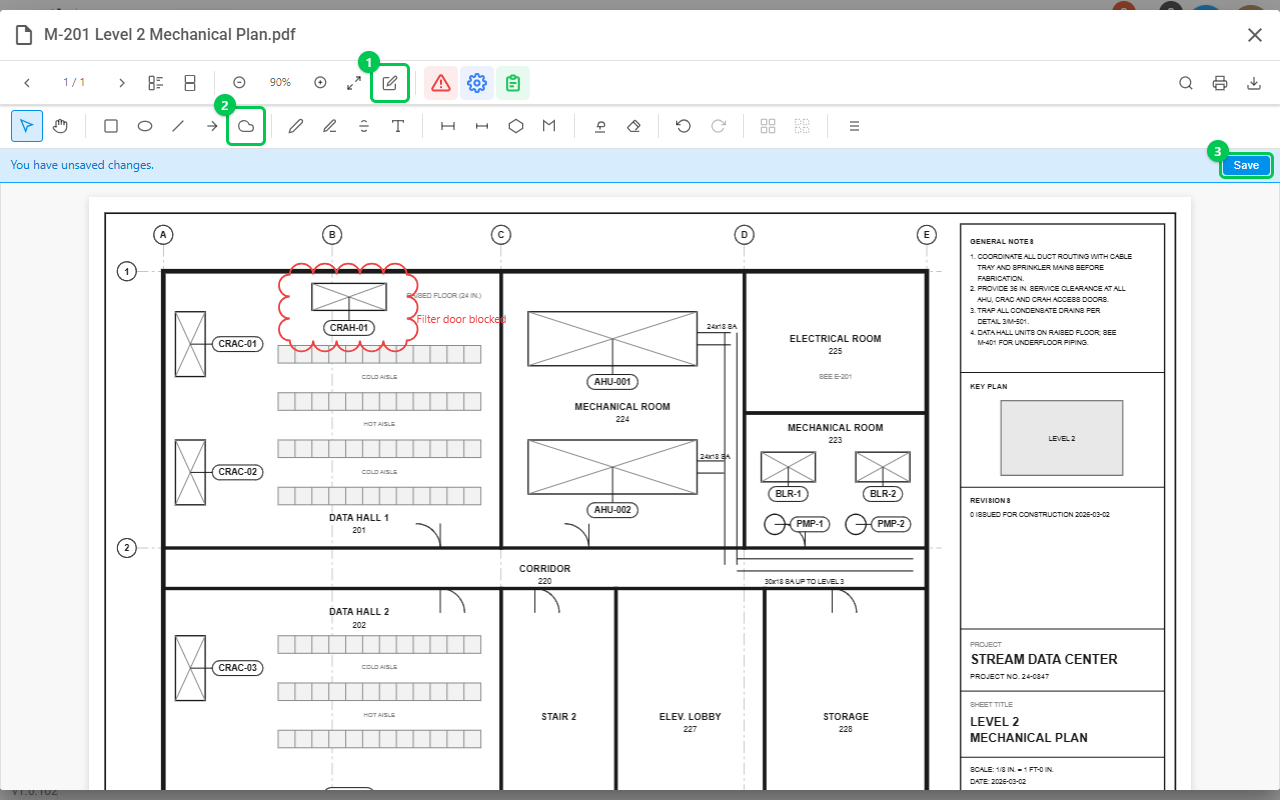
- Double-click the drawing to open it.
- Click Drawing Tools (the pencil), choose a tool such as Cloud, Arrow or Text, and draw on the sheet.
- Click Save.
Raise an issue on the drawing
- Click Link Issue (the red warning triangle), then click the spot on the drawing.
- Click Create New Issue. To pin an issue you already have, click Assign Existing Issue instead.
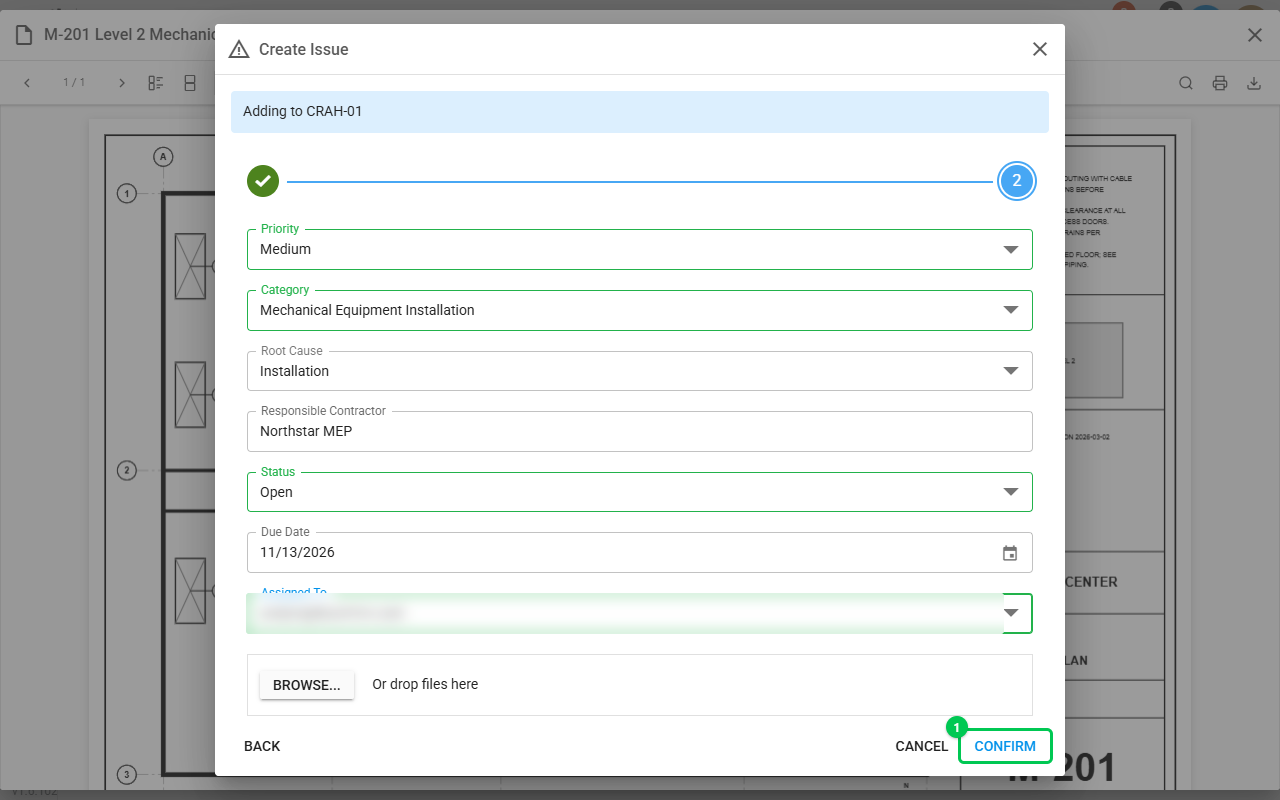
- Under Attach where?, choose Project level, or Equipment and the equipment. Click Next.
- Describe the issue and click Next.
- Fill in the details and Assigned To, then click Confirm. Status starts as Draft: change it to Open if the issue should be open right away.
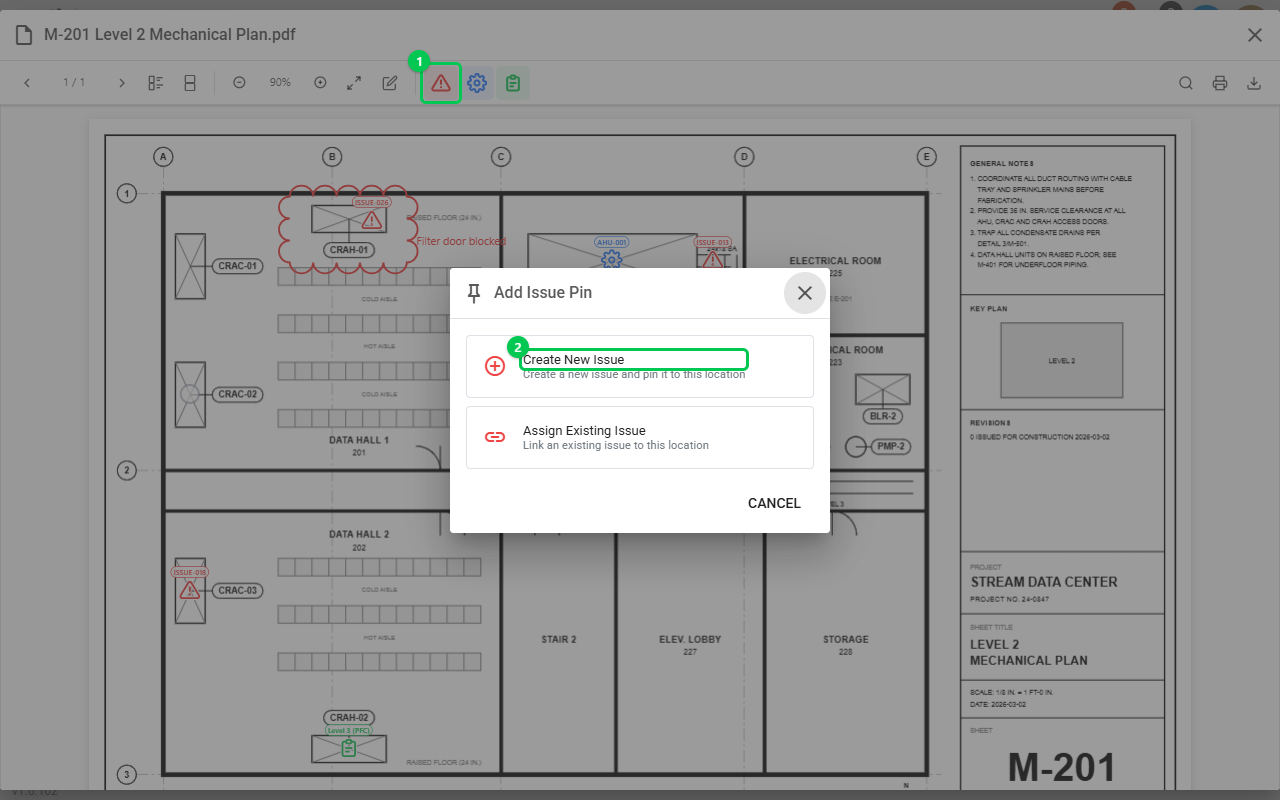
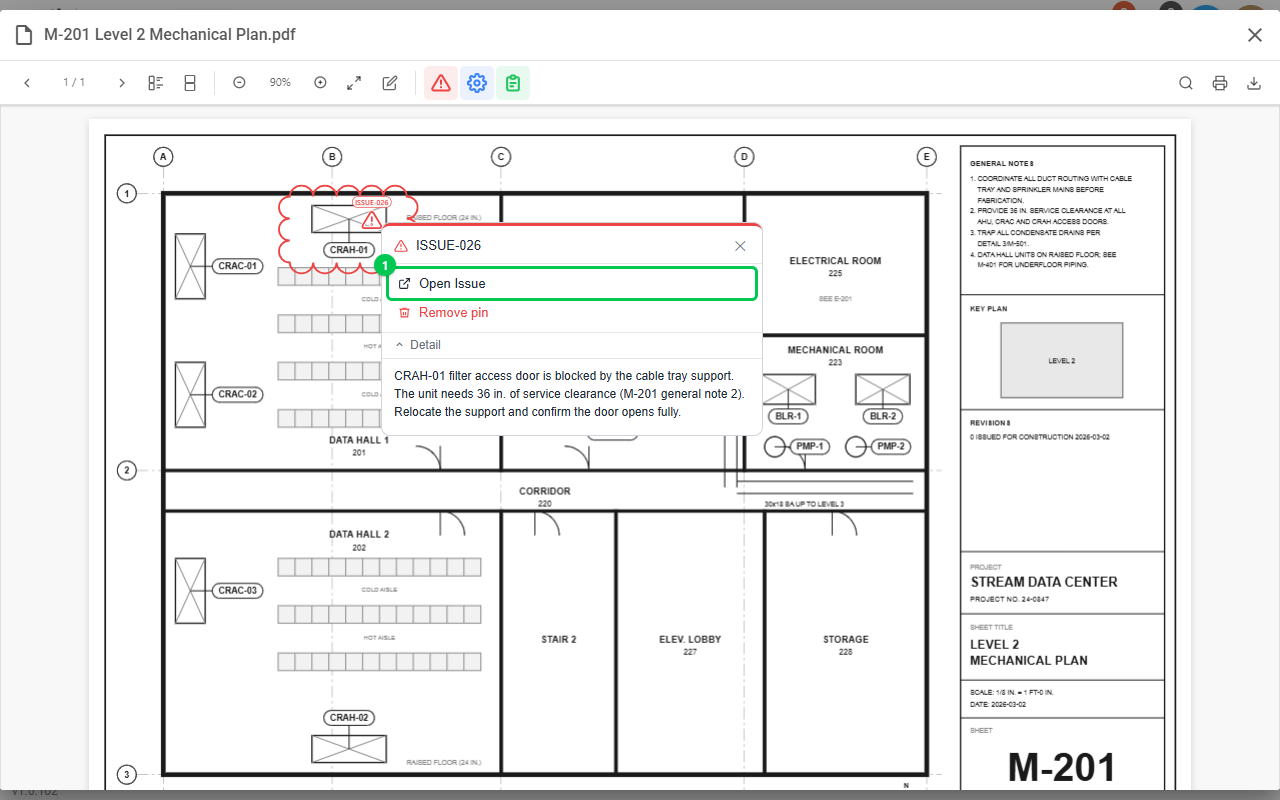
A pin with the issue number now marks the spot. Click it to read the issue under Detail, or click Open Issue to go to it. On the issue's page, the Linked Files tab opens the drawing at the pin.
Good to know
- Account Admins and Users in the company that owns the project add drawings, markups and pins. Guests and Privileged Guests open drawings from the Linked Files tab of the items they can see (see How do I link equipment, checklists and issues to places on a drawing?).
- Markups and pins stay on the drawing in Bluerithm. Download and Print in the viewer use the original PDF, without them.