
How do I link equipment, checklists and issues to places on a drawing?
In the new Bluerithm (app.bluerithm.com) you can pin equipment, checklists, test forms and issues to their spot on a PDF drawing. A pin takes you to the item, and the item's Linked Files tab takes you back to the drawing.
Add a pin
- On the project's Files page, double-click the drawing to open it. To upload one, see How do I add a drawing to a project and raise an issue on it?
- In the viewer's toolbar, click Link Issue (red triangle), Link Equipment (blue gear), or the green clipboard button for checklists and test forms.
- Click the spot on the drawing.
- Search for the item in the window that opens, select it, and click Select. For an issue, first choose Assign Existing Issue, or Create New Issue to raise one there.
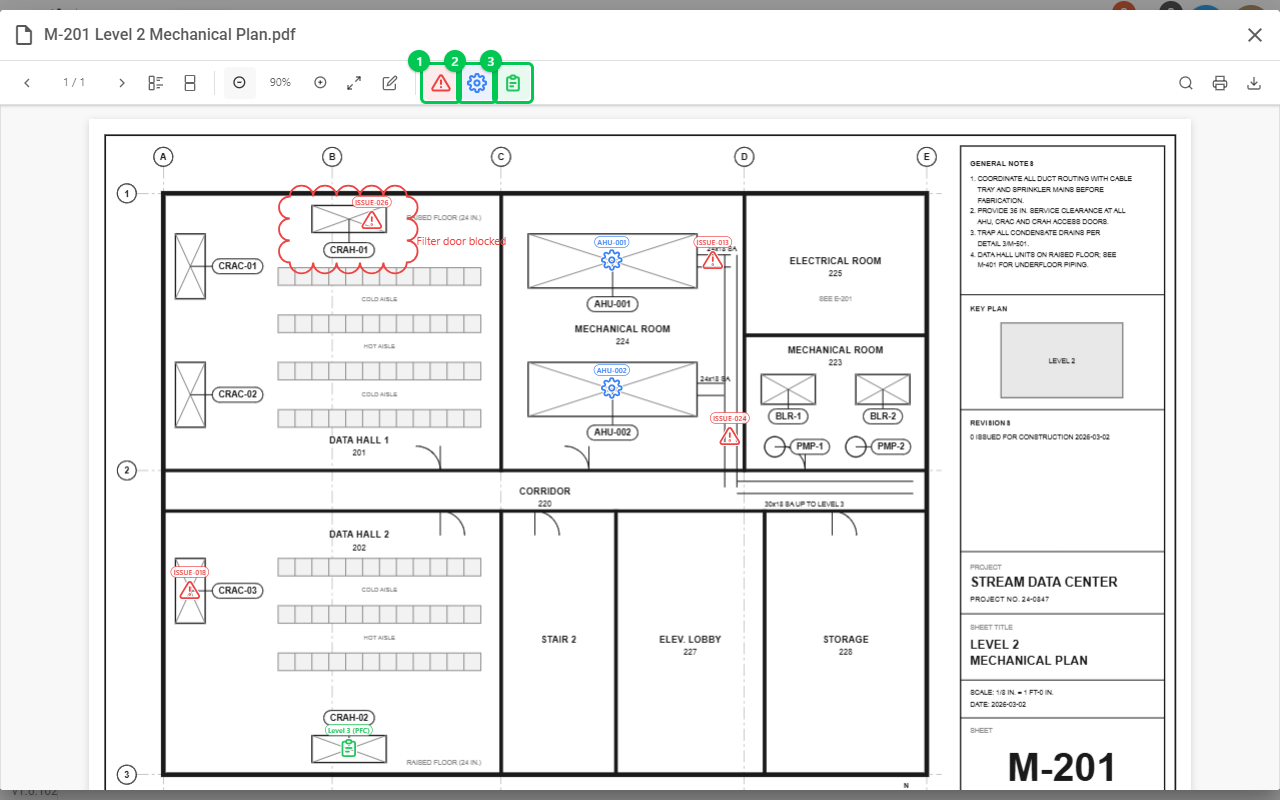
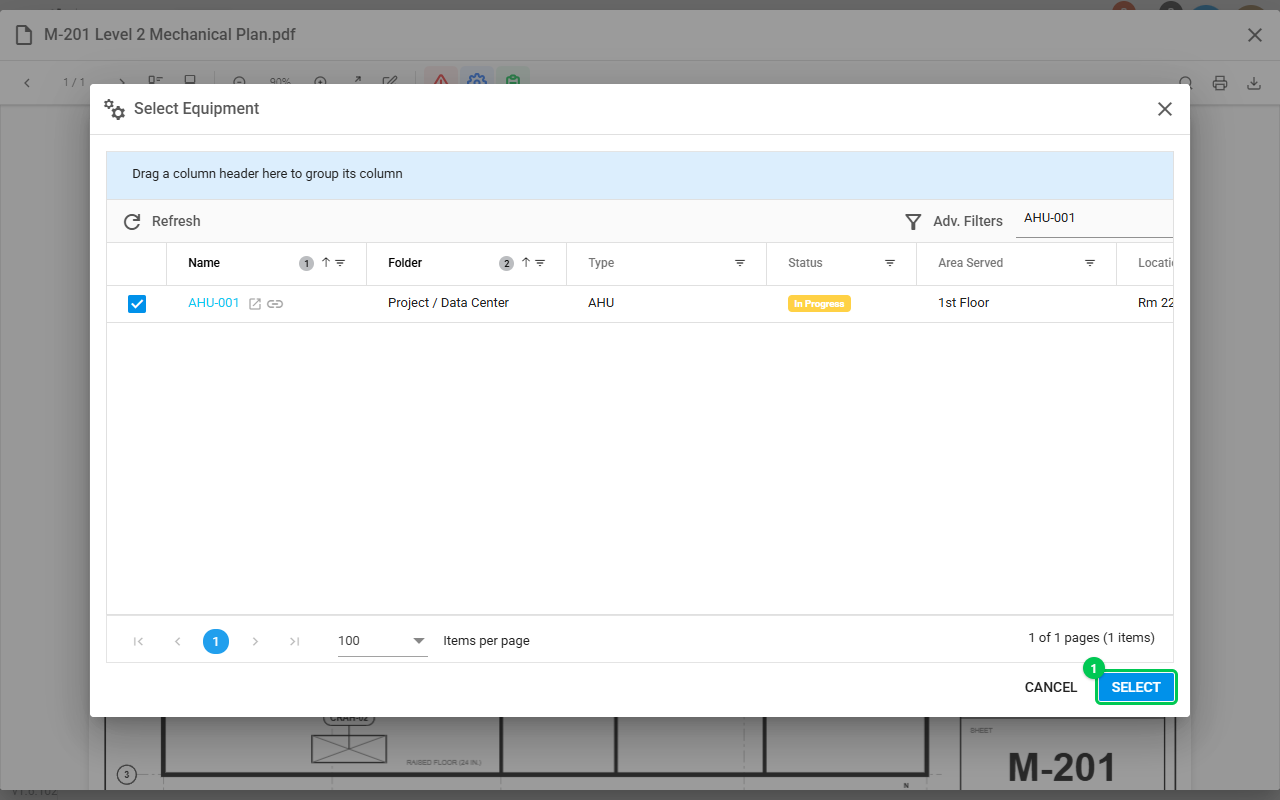
Pins show the equipment tag, the checklist's category or the issue number. Equipment pins are blue, checklist pins green, and issue pins take the issue's status color (red while open).
Use a pin
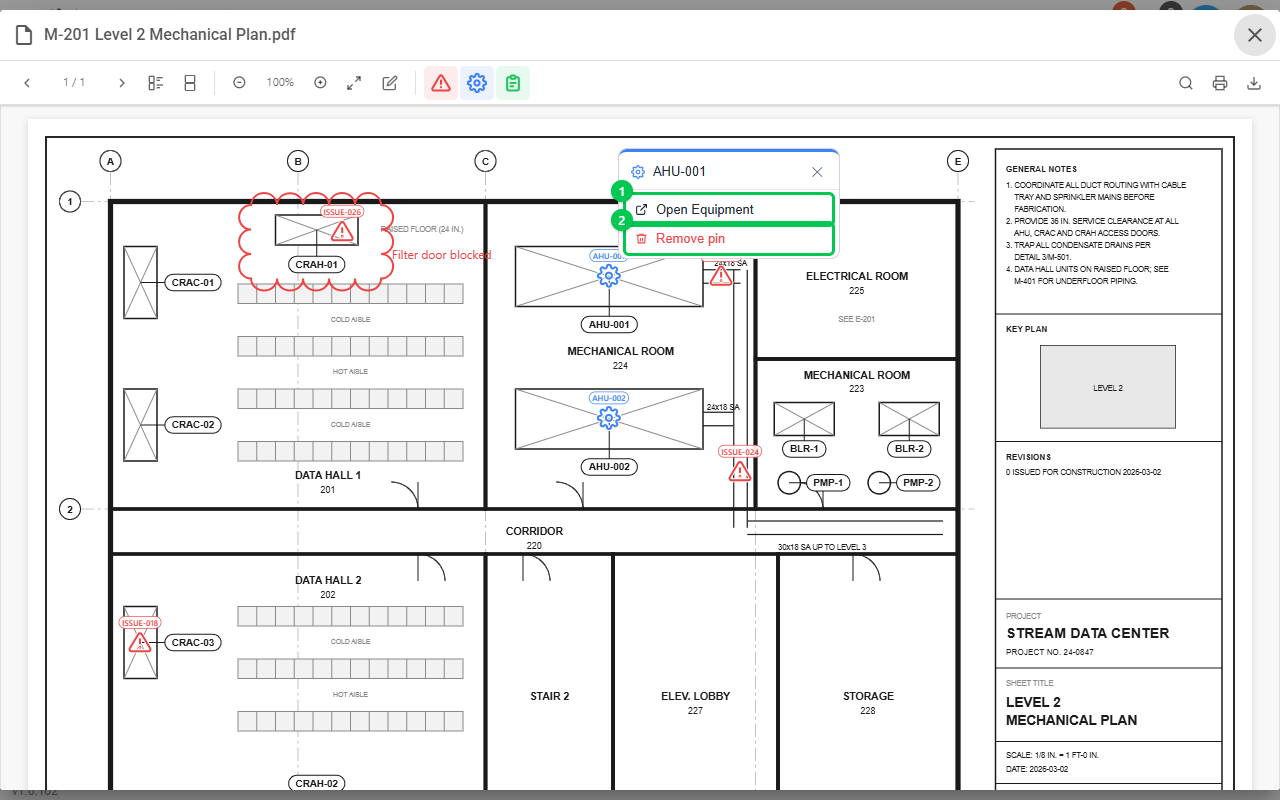
Click a pin, then click Open Equipment, Open Issue or the matching button for a checklist. Issue pins also show the issue's description, notes and photos under Detail. Drag a pin to move it. Remove pin takes it off and leaves the item as it is.
Find the drawing from an item
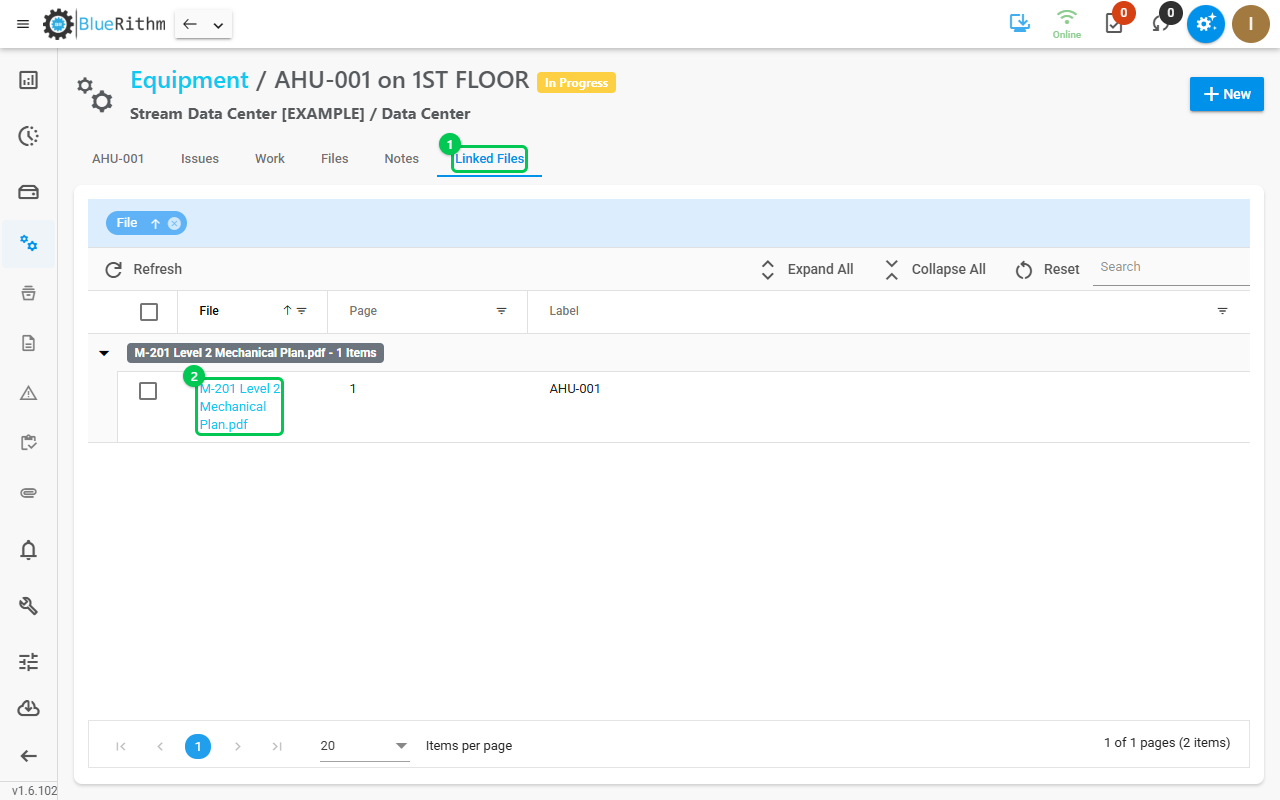
On the item's page, click the Linked Files tab. It lists each drawing and page the item is pinned on: click the file name to open the drawing at the pin.
Who can add pins
Account Admins and Users in the company that owns the project add, move and remove pins. Guests and Privileged Guests open a drawing from the Linked Files tab and see the pins for the items they can see. They don't get the link buttons or Remove pin, and they can't save markups.