
How do I set up a project from my documents with the Bluerithm agent?
The Bluerithm agent can set up a project from your project documents, using your own equipment types, checklists and test forms. You answer its questions and review the result.
- Open the project in the new Bluerithm (app.bluerithm.com). If it doesn't exist yet, create it first.
- Open the agent and start a new conversation, for example "Project setup" (see How do I open the Bluerithm agent?).
- Attach your documents: click the paperclip (Attach files), drag them onto the panel, or paste them. Drawings, specifications, equipment schedules and submittals all work. See What files can I give the Bluerithm agent?
- Say what you want, and what to use. For example: "Set up this project from these documents. Use our equipment types, checklists, test forms and issue settings from our template project." You can also type / and choose the project-setup skill.
- Keep the model menu under the message box on Medium — project setup and most work (the default), or choose High for the longest jobs. The agent does not run a project setup on Low.
- Answer its questions: pick an option (1), or type your own answer (2), then click Answer (3). One card can hold several questions.
- Allow or deny each change, or let it make changes without asking in this conversation (see How do I choose whether the Bluerithm agent asks before making changes?).
- Review the project: the equipment and its folders, the equipment types and their work, the project's own work, and the issue settings.
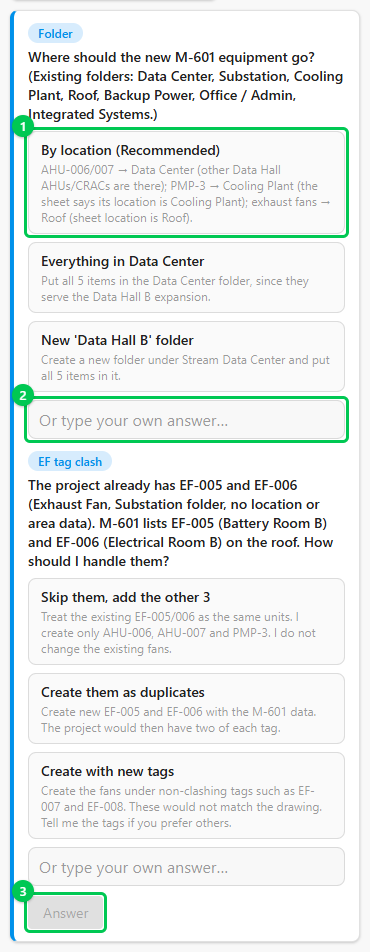
The agent checks your documents against the project before it changes anything. Above, it found two exhaust fan tags on the drawing that the project already has, and asked what to do with them.
What the setup covers
The agent works in stages and shows its plan as a checklist (Plan · 2 of 6 done, for example):
- the order your work happens in, from your template's work order;
- equipment types, from your templates or from the specifications, with their checklists and tests adapted to the project, and new ones where your templates stop;
- the equipment, placed in folders by system;
- project-level work such as design reviews, site visits and sign-offs;
- issue categories, priorities and properties.
Tell it to skip a stage, or to stop after one so you can review, whenever you like.
Large document sets
- A full setup from a large drawing set can take a while. You don't have to watch: close the panel or your browser and the agent keeps working.
- When it needs an answer or an approval, it waits. If you haven't answered after an hour, it pauses and carries on as soon as you do.
- The agent reads every page of the documents you attach, and reading uses AI credits. Attach the documents the setup needs rather than the whole project archive.