
How do I fill the same checklist or form on many equipment at once?
When several equipment of the same type carry the same checklist, for example forty VAV boxes with the same Pre-Functional Checklist, fill in the checklist on one of them, then copy what you entered to the others with Copy Results in the new Bluerithm (app.bluerithm.com). The copy runs as a background job, and nothing already entered on the other equipment is overwritten unless you choose to replace it.
Copy Results is the new Bluerithm's replacement for the form matrix (form summary) of the legacy web app: see "Coming from the form matrix?" below.
Copy results to other equipment
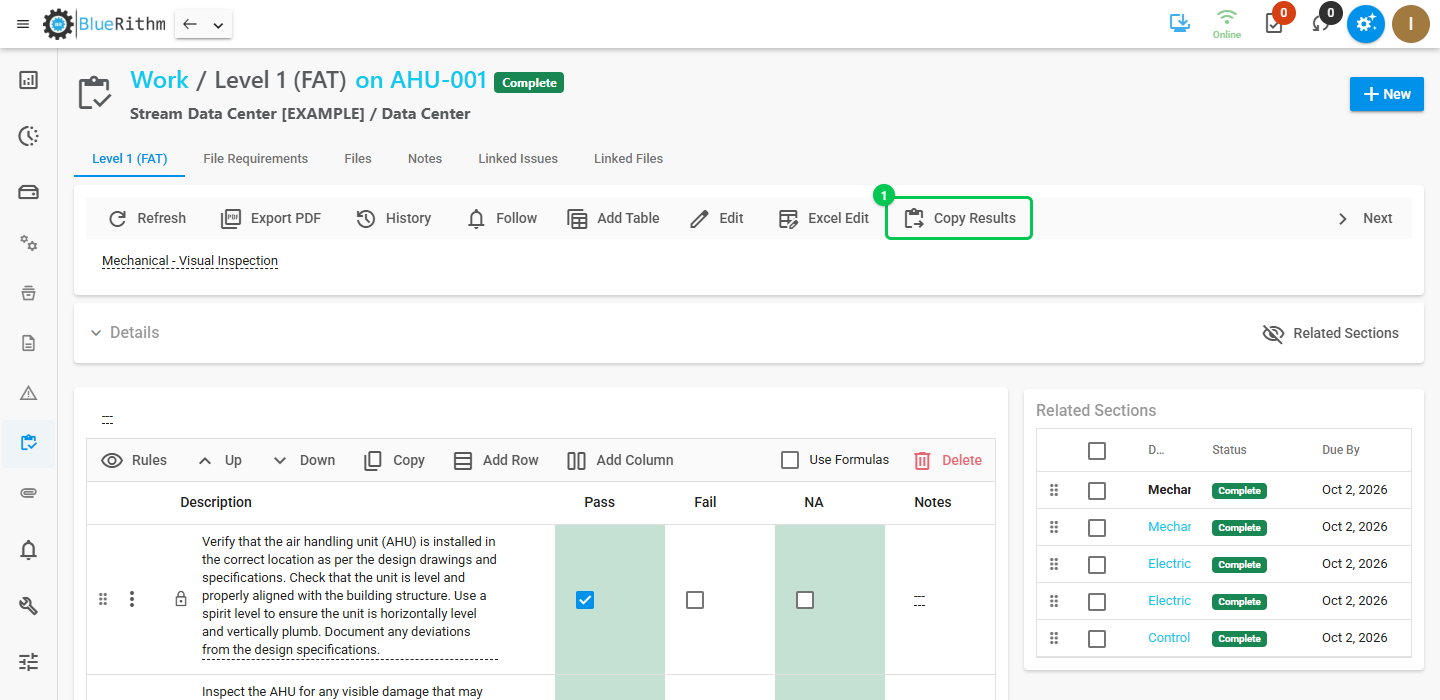
- Open the checklist you filled in on its piece of equipment, and click Copy Results (1) in the toolbar.
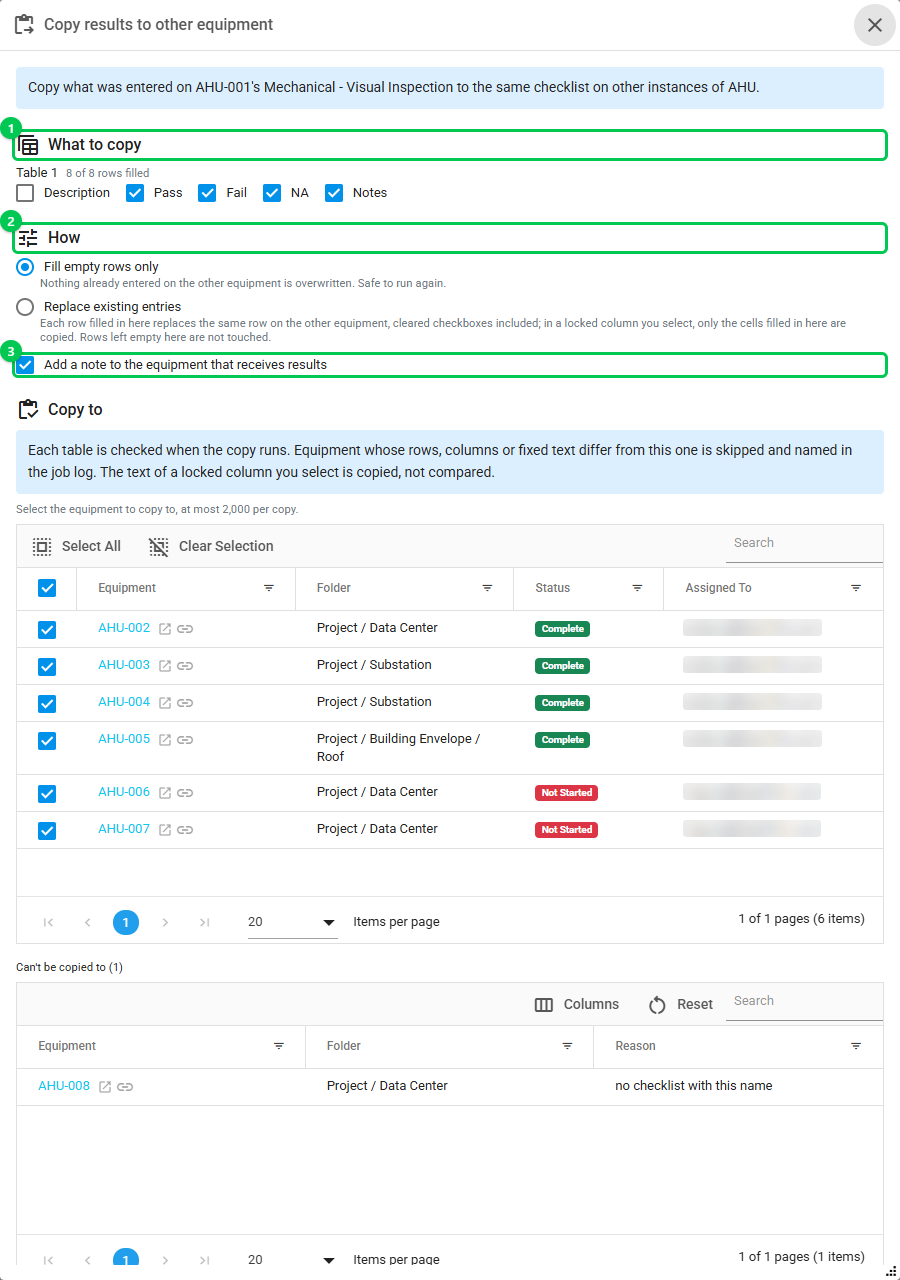
- Under What to copy (1), select the tables and columns to copy. Each table shows how many of its rows are filled in. Leave columns that hold values particular to each piece of equipment, such as serial numbers or readings, unselected.
- Under How (2), choose:
- Fill empty rows only: a row is copied only where it's still empty on the other equipment. Nothing already entered there is overwritten, so it's safe to run again.
- Replace existing entries: each row filled in here replaces the same row on the other equipment, cleared checkboxes included. Rows left empty here aren't touched. You're asked to confirm first, because a replace can't be undone.
- Keep Add a note to the equipment that receives results (3) selected to add a note to each checklist that receives results, saying where they came from, who copied them, when, and how many rows.
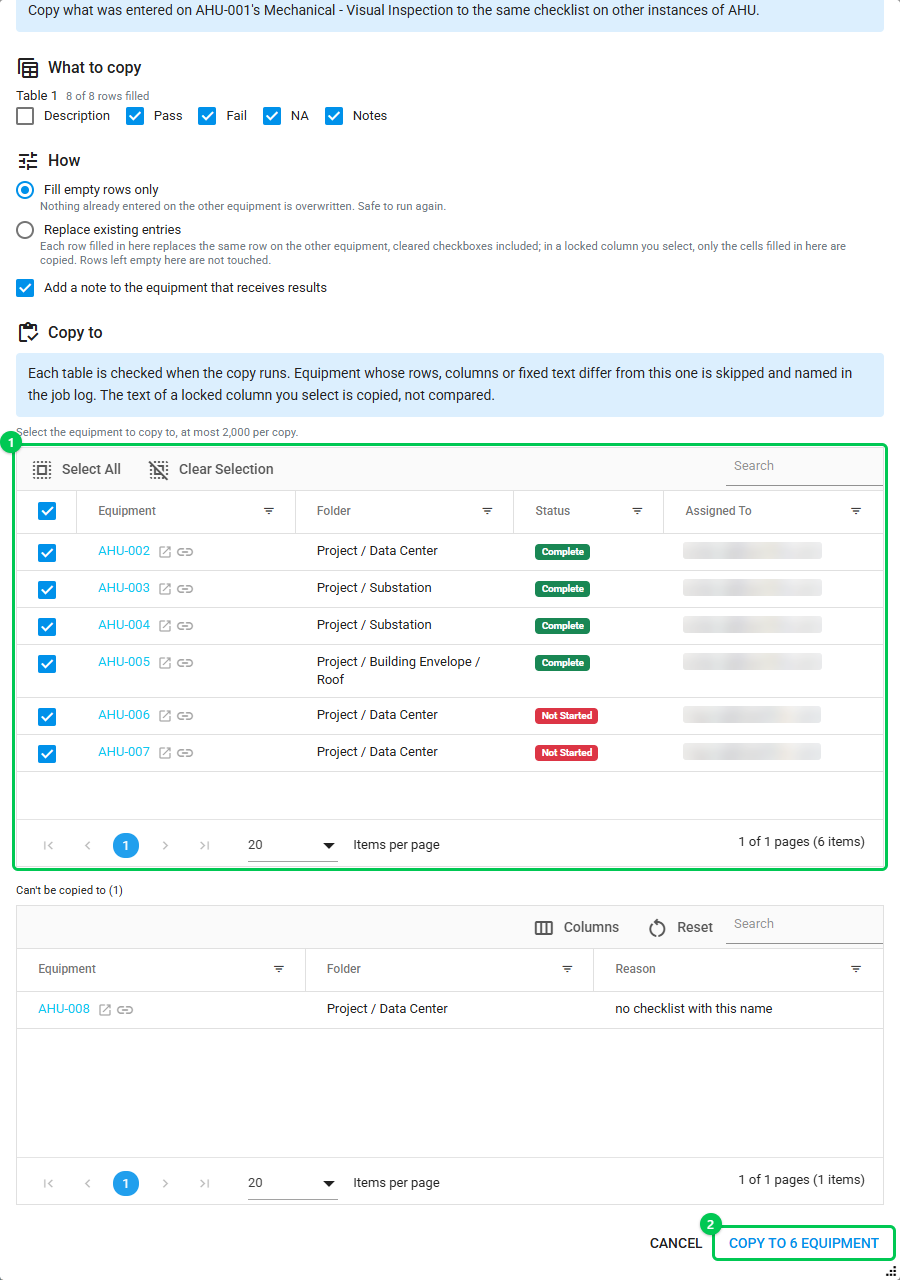
- Under Copy to, select the equipment (1). Every other instance of the type that has the same checklist is listed with that checklist's status and assignee, and they all start selected. Search the list, or use Select All and Clear Selection. One copy reaches at most 2,000 pieces of equipment.
- Click Copy to … equipment (2). Follow the copy in your jobs list, then refresh the page to see the results.
Copy results needs a connection: it isn't available offline or in a project downloaded for offline use.
Why some equipment can't be selected
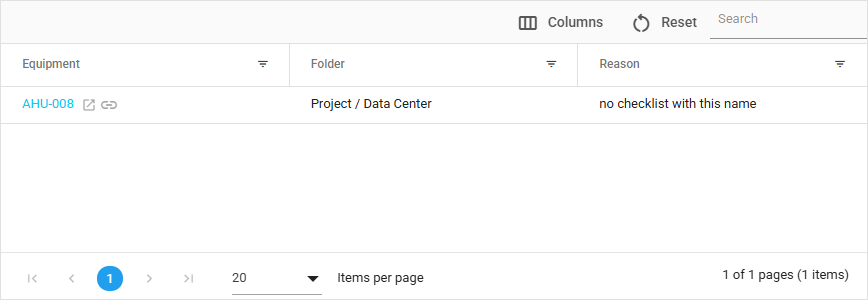
Equipment listed under Can't be copied to has no checklist with this name, or has more than one. To give it the checklist, see How do I attach existing checklists to newly added equipment?
What happens when the copy runs
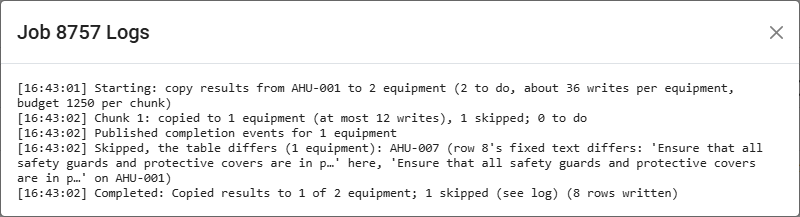
- Each table is checked against yours first. Equipment whose table differs, for example a row or column added or removed, a column renamed, or an item's text changed, is skipped.
- A row with a checkbox that creates an issue when clicked, such as Fail, is copied like any other row, but no issue is created on the other equipment.
- Each checklist moves to the status its tables now give, and the equipment's status follows.
- When the project's work order makes a checklist wait for other work with a Block gate, a checklist that can't start yet is skipped with the reason. With a Warn gate, it's copied and recorded as started out of order. See How do I make work wait for other work to finish?
When the job finishes, its message reads, for example, "Copied results to 38 of 40 equipment; 2 skipped (see log)". Open the jobs list from the top bar and click View Log to see each skipped piece of equipment and why.
Who can copy results
- Account Admins and Users can copy from any piece of equipment's checklist in the project.
- Guests and Privileged Guests can copy from a checklist assigned to them to the other checklists assigned to them, and see only those in the list. When their company shares assignments, that includes checklists assigned to their company (see Sharing Issue and Work Assignments).
Locked columns
Columns locked in the checklist's design, such as the item text, start unselected. If you can edit locked cells (everyone except Guests and Privileged Guests), you can select one to copy it too:
- Its cells are copied one by one, and only the cells filled in here are written. With Fill empty rows only, a locked cell is written only where it's empty on the other equipment.
- A locked column you select isn't used to check that rows line up. Select the column holding each row's item text only when that text should be the same everywhere. Left unselected, it's checked, and equipment whose item text differs is skipped.
Copy from the equipment type's checklist
Account Admins and Users can also click Copy Results on a checklist that belongs to an equipment type rather than to one piece of equipment. The results go to the same checklist on every instance of that type in the project. Use it for answers that are the same on every instance, filled in once on the type.
Coming from the form matrix?
The form matrix (or form summary) in the legacy web app (trac.bluerithm.com) let you fill in one checklist across many pieces of equipment from a single matrix. In the new Bluerithm there is no form matrix; instead:
- To fill the same answers on many pieces of equipment, fill in one checklist and copy its results, as above.
- To see progress across many pieces of equipment, use the Equipment Matrix on the project dashboard: one row per piece of equipment and a column per work category, with progress counted line by line. See Portfolio and Project Dashboards.
- To see many checklists' results side by side, ask the Bluerithm agent, for example "Put the Pre-Functional Checklist results for every VAV box in one spreadsheet". It gives you a link to download the file. The agent is available to accounts with AI tools.
The form matrix itself is still in the legacy web app, for projects that use it there.